How to find text in screenshots and scanned PDFs on a Mac
Find the words inside screenshots, photos and scanned PDFs on a Mac: what Spotlight, Live Text and Preview can do, and how to search a whole folder with OCR.

In short
- Type a word from the image into Spotlight (⌘Space) or Finder search. Select languages only.
- One image: copy its text with Live Text in Preview.
- One PDF with a text layer: Preview's search field.
- Scanned PDFs without a text layer are the gap.
Disclosure: we make FileOctopus, a file manager with optional text search for documents, screenshots and scanned PDFs. Built-in ways come first and often suffice. Apple pages checked 4 November 2026.
What macOS can and can't do
| Task | How well | Built-in way |
|---|---|---|
| Find a screenshot by a word in it | Partly: select languages; depends on the Spotlight index | Spotlight or Finder search |
| Copy text out of one image | Yes: one image at a time | Live Text in Preview or Photos |
| Find a word inside one PDF | Partly: needs a text layer | Preview's search field |
| Find photos by text in them | Partly: Photos library only | Photos search |
| Search many scanned PDFs at once | No: use an app with OCR | No documented built-in way |
works with limits no built-in way
Can Spotlight search text in screenshots?
Yes, in supported languages. Apple's Mac guide says: "With Live Text, Spotlight can search for text in images (available in select languages)" (Apple Support). Finder uses the same index.
- Press ⌘Space and type a word or number from the screenshot, such as an order number.
- Add
kind:imagefor images only (A-20417 kind:image) orkind:pdffor PDFs. Filters are listed on Apple's Narrow your search results. - In Finder: ⌘F, pick the folder or This Mac, type the word.
Live Text languages, from Apple's macOS feature availability page: English, Chinese (Simplified and Traditional), Cantonese, French, German, Italian and Brazilian Portuguese, some only in certain regions.
Why doesn't Spotlight find text in my screenshot?
Spotlight only finds image text it has already read, so new screenshots, skipped folders and damaged indexes give nothing. Apple doesn't say which images are read or when, so a miss isn't always a fault:
- Is the folder excluded? System Settings ▸ Spotlight ▸ Search Privacy lists folders never searched (Apple Support).
- Is the language supported?
- Does Spotlight find the file by name? If not, fix the index: Spotlight not finding files on macOS Tahoe, or Finder search not working or slow.
How do you copy text from an image on a Mac?
In Preview, drag over the text, Control-click and choose Copy Text (also Look Up, Translate, web search). If it won't select, choose Tools ▸ Text Selection (Apple Support).
Photos has Live Text and text search: Apple says you can "search for text within photos to quickly find receipts, documents, and more", and ⌘F jumps to the search field (Apple Support). That covers screenshots in Photos, not files in folders.
How do you search text in a PDF on a Mac?
Type in Preview's toolbar search field (widen the window if hidden). Any Match in the magnifying glass menu matches any word of a phrase (Apple Support).
- Works: PDFs with a text layer, such as exports from Word, Pages or a browser.
- Doesn't: scanned PDFs, which are pictures of pages. We found no Apple page on adding a text layer; PDF editors with OCR can, one file at a time.
Search text in screenshots and scanned PDFs with FileOctopus
FileOctopus works like Finder, so there is nothing to relearn, with its own index. In folders you choose, it reads text in images and scanned PDFs with Apple's on-device text recognition (the Vision framework). The text stays in a local index; Spotlight's settings don't change.
- In FileOctopus ▸ Settings… ▸ Search, add a folder such as Screenshots.
- Turn on Text in Images, and Contents for documents and PDFs with a text layer.
- Let indexing finish; an open search updates as files are read.
- Search with
content:and the words, for examplecontent:A-20417orcontent:"brand workshop".
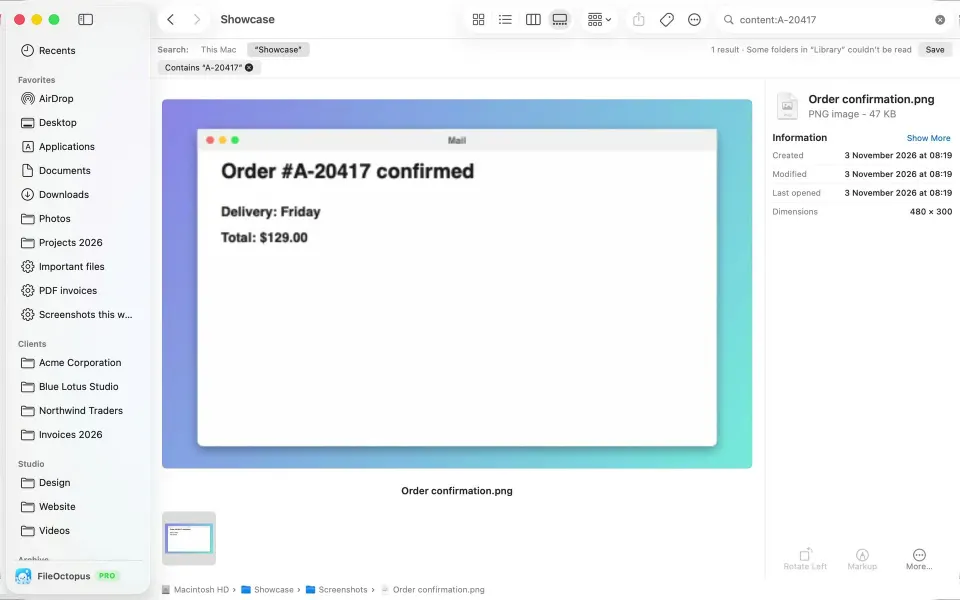
content:A-20417 finds a screenshot whose order number exists only in the image.content: also finds invoices by a phrase inside them.What it reads, from the content and OCR guide:
Reads
- Images and scanned PDFs: local images, up to 10 pages of a scanned PDF, 50 MiB per file
- Documents: plain text, Markdown, CSV, JSON, logs, source code, PDF text layers (50 pages, PDFs up to 64 MiB)
Keep in mind
- Quality depends on the image and on the languages macOS supports
- It reads text, not what a picture shows, so "photo of a dog" won't work
- It isn't a reader for every Office format
- Cloud-only files in iCloud, Google Drive or Dropbox are skipped, never downloaded
Contents and Text in Images are PRO (free to try for 14 days), each off until you turn it on for a folder; filename search and Spotlight results are Free. Erase Index… deletes the stored text any time; your files are never changed. Needs Apple Silicon and macOS 15 or later. See the content search tip and pricing.
Which way to use
- Spotlight already finds your screenshotsStay with Spotlight: built in, whole Mac
- You need the text from one image or one PDFPreview
- You often search the same folders of screenshots or scanned PDFs and Spotlight misses them, or want to see coverage and erase stored text
 A separate index such as FileOctopus
Questions people ask
Does macOS have built-in OCR?
Yes, Live Text reads image text in Preview, Photos and Spotlight, in select languages. Apple documents no built-in way to make a scanned PDF searchable.
Where are screenshots saved on a Mac?
On the Desktop by default, named "Screenshot" with the date and time. Press ⇧⌘5 ▸ Options to choose another folder, easy to add alone to a search index.
Is the text from my screenshots sent anywhere?
Apple says Live Text "uses on-device machine learning" (Apple Newsroom, June 2021). FileOctopus uses the same on-device recognition, storing text only in its local index; see the privacy guide.