Spotlight not finding files on macOS Tahoe: what helps
Spotlight on macOS 26 Tahoe missing files you know are there? Check the index, settings and Search Privacy, rebuild it, and find files in the meantime.
Since macOS 26 Tahoe came out, a steady stream of people have reported that Spotlight stopped finding their files: apps and web suggestions still appear, but documents that are plainly on the disk don't. This page collects what is known, the fixes Apple documents, the ones users report, how well each one held up, and what to do when you need a file now.
We make FileOctopus, a file manager with its own search, so we have an interest here. The built-in fixes come first, and they are the ones to try first.
What is known so far
Tahoe redesigned Spotlight. It now has separate views for Apps, Files, Actions and Clipboard, filters such as /pdf, and quick keys (MacRumors, 3 December 2025). Reports of missing files started soon after release:
- A TidBITS forum thread from 5 October 2025 describes Spotlight returning web results but not files on the disk. The poster also found that the upgrade had reset their Spotlight settings. Deleting the index, re-enabling Spotlight and restarting fixed it for them.
- An Apple Community thread from 1 November 2025 (macOS 26.0.1) reports no file results at all. Rebuilding the index didn't help that user; starting in Safe Mode did, but only for about a week.
We checked both threads on 26 October 2026. Apple's support pages describe how to rebuild the index but, as far as we could find, don't mention a Tahoe-specific problem. So treat the fixes below as things that help many people, not a guaranteed cure, and expect to repeat one if the problem returns.
Step 1: check whether the index has the file
Spotlight's window mixes many kinds of results, so first make sure the file is really missing. Open Spotlight with ⌘Space, move the pointer over its window to show the Apps, Files, Actions and Clipboard icons, and click Files. Then ask the index directly in Terminal (Applications ▸ Utilities):
mdfind -name "invoice"Use part of the real file name. If Terminal lists the file, the index has it and the problem is in Spotlight's settings or window; start with step 3. If it doesn't, the index is missing it. Then check indexing is on:
mdutil -s /"Indexing enabled." is what you want to see. These commands only read; they don't change anything.
Step 2: let indexing finish
A macOS upgrade usually starts a full re-index. Apple says indexing can take hours or even days depending on how much data you have, and goes faster when the Mac is idle and connected to power (Apple Support, checked 26 October 2026). In Activity Monitor, busy mds, mds_stores or mdworker processes mean it is still at work. Leave the Mac on and plugged in overnight before trying anything stronger.
Step 3: check Spotlight's settings
Open System Settings ▸ Spotlight.
- Results from Apps and Results from System list what may appear in results. Something turned off here doesn't show up, even though it is indexed. Since one user found the upgrade had reset these, look through both lists.
- Search Privacy, at the bottom, lists folders and disks Spotlight skips. Remove any that you want searched with −.
Step 4: rebuild the index, Apple's way
- In System Settings ▸ Spotlight, click Search Privacy.
- Click + and choose your disk (usually Macintosh HD) or the folder that has the missing files. You can also drag it into the list.
- Wait a few seconds, select it in the list and click −.
- Click Done. Spotlight re-indexes that disk or folder.
If you see an "unknown" or permissions error, Apple says your account may not own some items in that location; fix their permissions first. After the rebuild you're back at step 2: results stay incomplete until it finishes.
Step 5: rebuild from Terminal
If the settings route doesn't seem to start anything, erase and rebuild the startup disk's index directly:
sudo mdutil -E /It asks for your administrator password. If mdutil -s / reported indexing as disabled, turn it on first with sudo mdutil -i on /. A message saying the index is already changing state means a change is in progress; wait a few minutes and run the command again. For an external disk, use its path instead of /, for example /Volumes/Backup.
Step 6: restart, or start in Safe Mode once
A plain restart sometimes gets Spotlight going again after a rebuild. Users in the Apple Community thread above also reported that starting once in Safe Mode and then restarting normally brought results back, though for at least two of them it lasted only days. On a Mac with Apple silicon, shut down, hold the power button until the startup options appear, select your disk, then hold Shift and click Continue in Safe Mode. Restart normally afterwards.
You'll find stronger suggestions on forums, such as deleting folders inside your Library. Apple doesn't document them, and we'd skip them unless you have a current backup.
Step 7: tell Apple
If the problem keeps coming back, report it with the Feedback Assistant app or at apple.com/feedback. Include your macOS version and say whether mdfind finds the file. A bug that comes back after every rebuild is something only an update can fix.
If you need the file right now
None of the above is quick. To find a file today without Spotlight:
- Terminal:
find ~/Documents -iname "*invoice*"walks the folder you name and prints every file whose name contains the word. It reads only, but it can take a while on a large folder. - An app that reads the disk: Find Any File searches by name, size and date without the Spotlight index, according to its website (checked 26 October 2026). Apps such as HoudahSpot, by contrast, use the Spotlight index, so they are affected when it is broken.
- Finder: searches in Finder also go through Spotlight, so they fail the same way. Browsing still works, and ⇧⌘G (Go to Folder) jumps to a path you remember. Finder search not working or slow covers Finder's own settings.
Search that doesn't wait for Spotlight
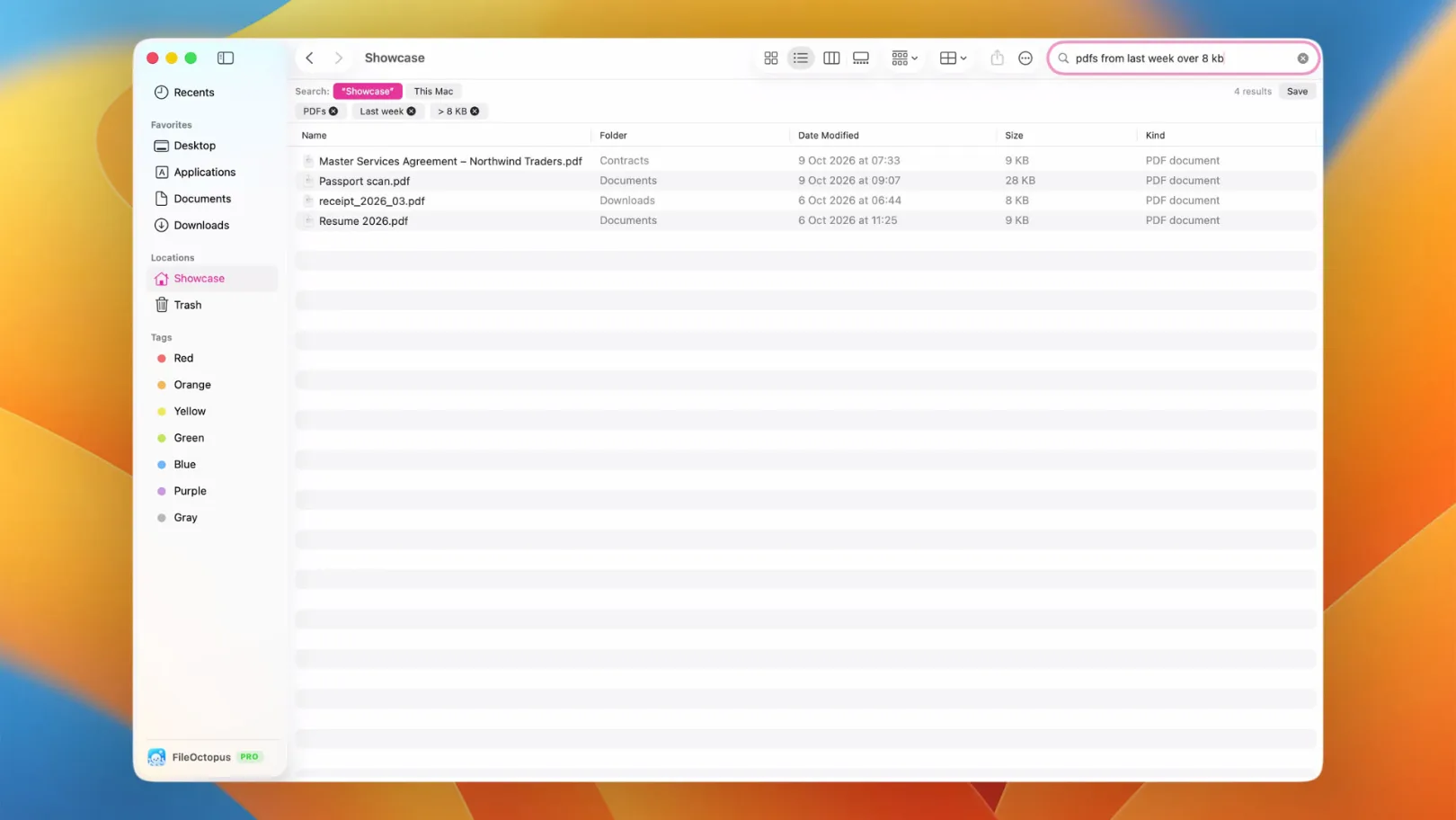
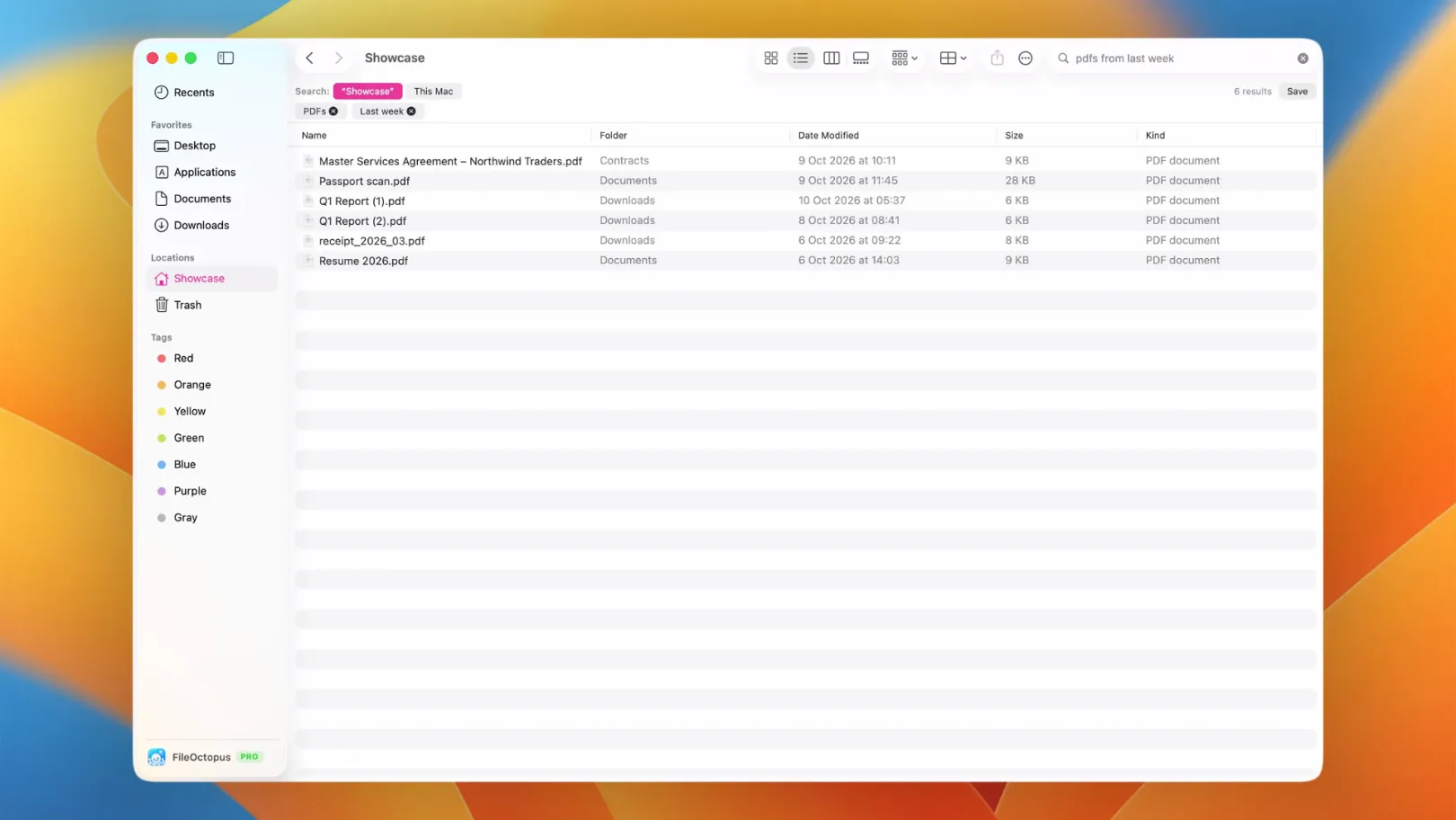
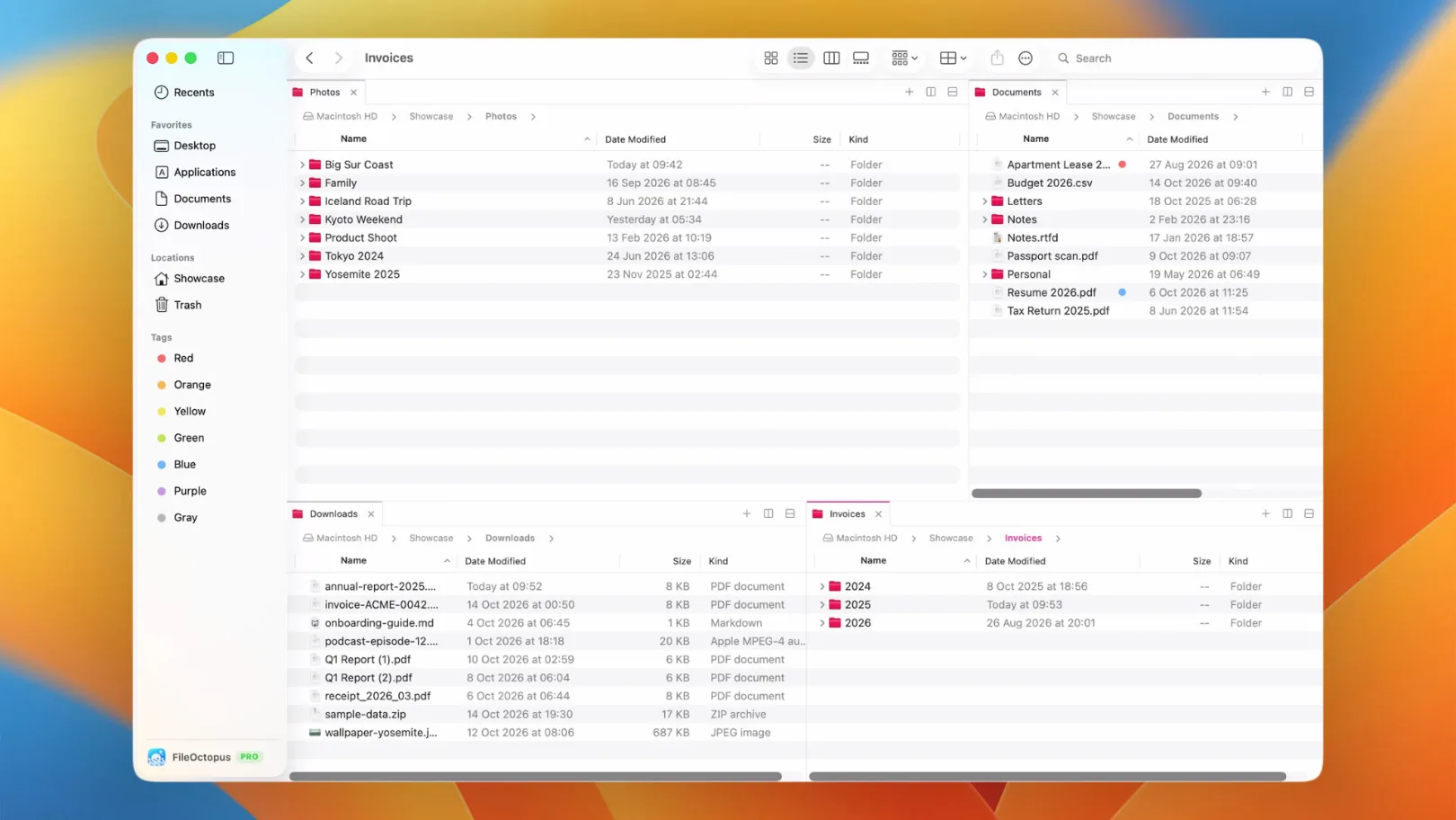
FileOctopus is a file manager that works like Finder, with its own search index. For the folders you add in FileOctopus ▸ Settings… ▸ Search, it indexes file names itself, so finding a file by name in those folders doesn't depend on Spotlight. Find can also show Spotlight's results, and those are only as good as the macOS index. Search settings show each folder's state (Indexing…, Paused, Offline, No access), so you can see when coverage is incomplete instead of guessing.
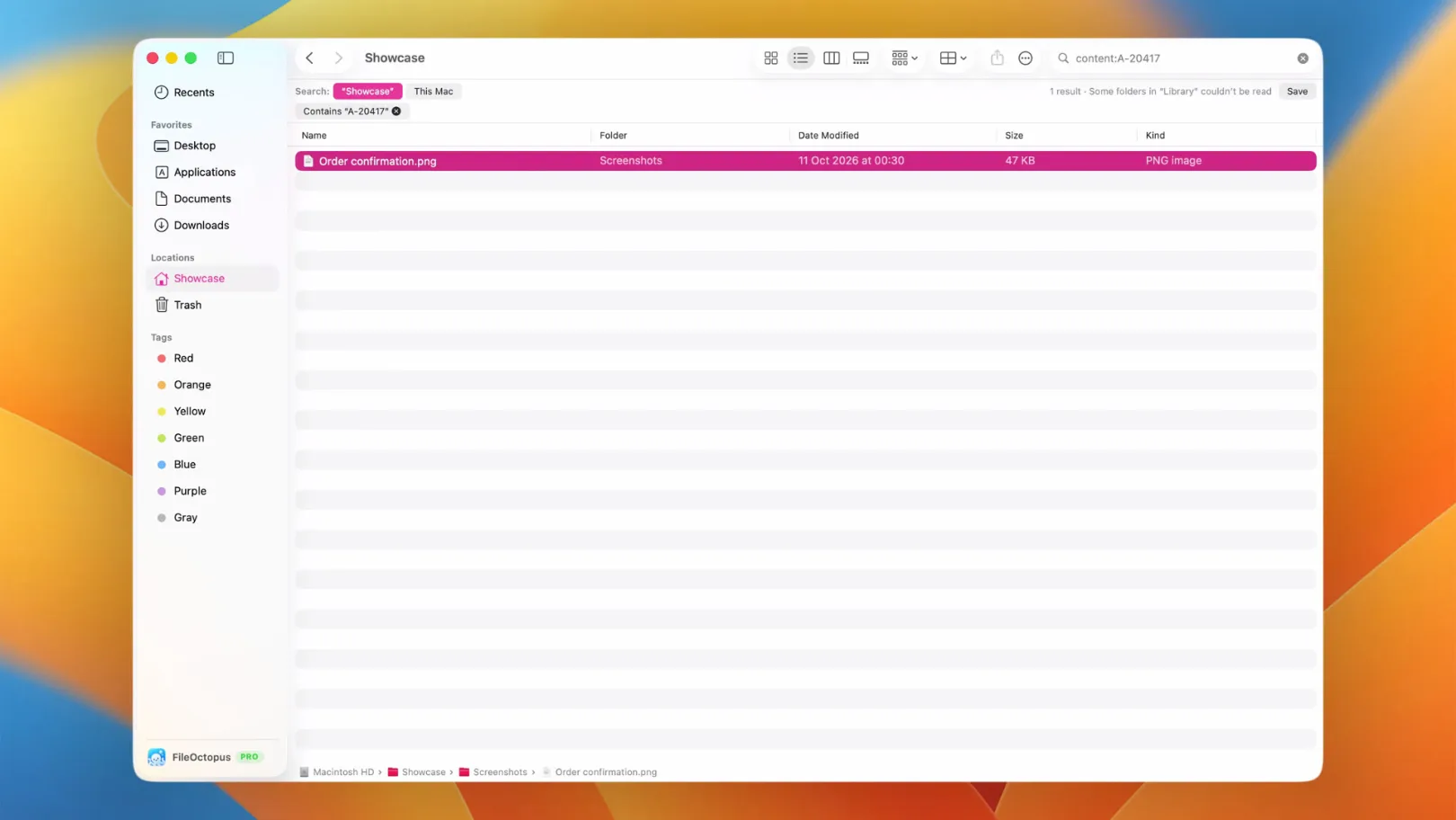
Text inside documents and in screenshots works the same way: FileOctopus reads it itself, using Apple's on-device text recognition for images, for folders where you turn on Contents or Text in Images. Those settings don't change Spotlight's, and Spotlight's don't change them. Content search covers plain text, Markdown, code, CSV, JSON, logs and the text layer of PDFs, within size limits listed in the content search guide; it doesn't read every Office format.
Filename and Spotlight search are free. Contents and Text in Images are part of PRO, which you can try free for 14 days, and stay off until you turn them on per folder. Nothing is indexed until you add a folder, and FileOctopus doesn't scan the whole disk. It needs Apple Silicon and macOS 15 or later. See the search guide, Search settings and pricing.
FileOctopus won't fix Spotlight, and it doesn't replace it for apps, settings or mail. It is a way to keep finding your own files while Spotlight sorts itself out, and after.