Google Drive or Dropbox not showing in Finder on Mac: what to check
Google Drive and Dropbox now sit under Locations in the Finder sidebar. Six checks, in order, from Apple, Google and Dropbox help, when one goes missing.
In short
- Google Drive and Dropbox now appear under Locations in the Finder sidebar, not under Favorites, and their files live in
~/Library/CloudStorage. - If one is missing, check that its desktop app is running and signed in, that the sidebar shows it, and that macOS has enabled it.
- A file manager can only show what those apps put on your Mac. It can't fix their sync.
When Google Drive or Dropbox is not showing in Finder on a Mac, the cause is usually one of four things: the provider's desktop app isn't running or signed in, the Finder sidebar hides it, macOS hasn't enabled its File Provider yet, or you are looking under Favorites while it now sits under Locations. The checks below go in that order and take a few minutes. Every step comes from Apple, Google or Dropbox help pages, linked and checked on 16 November 2026.
Where Google Drive and Dropbox show up in Finder now
Google Drive for desktop and Dropbox both use Apple's File Provider system on current macOS. With it, each account appears in the Finder sidebar under Locations, and the files sit in ~/Library/CloudStorage. Google says of that folder: "You can't change this location" (Google Drive Help).
| Setup | Sidebar section | Where the files are |
|---|---|---|
| Google Drive for desktop (current) | Locations | ~/Library/CloudStorage |
| Google Drive, older streaming method | Favorites | /Volumes/GoogleDrive by default |
| Dropbox on File Provider (current) | Locations | Managed by macOS |
| Dropbox, legacy (opted out) | Favorites | Your Dropbox folder, for example in your home folder |
Sources: Use Drive for desktop on macOS and Dropbox support for macOS on File Provider, checked 16 November 2026.
So the first thing to do is look under Locations. Many "missing" folders are there, after an update moved them out of Favorites.
Google Drive or Dropbox not showing in Finder: what to check
Work through these checks in order. Each one is quick, and the first three solve most cases.
- Is the app running and signed in? Look for the Google Drive or Dropbox icon in the menu bar. If it isn't there, open the app from Applications and sign in from that icon. Finder can only show an account the app has connected.
- Is Locations showing in the sidebar? Choose Finder > Settings, then click Sidebar (Apple Support), and turn on the items under Locations. If the Locations heading is there but empty, move the pointer over it to show the items it hides.
- Does macOS need you to enable it? For Google Drive, Google's steps are: open Finder, click Google Drive under Locations, then click Enable at the top right (Google Drive Help).
- Restart the app, then the Mac. Google lists restarting Drive for desktop and restarting the computer as its first fixes (Fix problems in Drive for desktop).
- Update macOS if Google Drive reports a File Provider error at startup; Google's advice for that error is to update macOS and restart.
- Reconnect the account. In Google Drive, choose Settings > Preferences > Advanced Settings > Disconnect account, then sign in again. As a last step, Google suggests reinstalling.
If files show up but their sync icons don't, see the Dropbox section below: another app's Finder extension can get in the way.
Check which mode Google Drive uses
Google Drive for desktop can stream or mirror your files. Google explains: "Streaming a file uses almost no computer space, but mirroring downloads a full copy directly to your computer" (Use Google Drive for desktop). Streaming files are only in the cloud until you open them.
To confirm Drive uses File Provider, open Google Drive from the menu bar, choose Settings > Preferences and look under "Google Drive streaming location" for "Folder location is controlled by macOS." If you see that, the account belongs under Locations. If Drive asks for access to files or photos, Google points to System Settings > Privacy & Security > Files and Folders.
Check whether Dropbox uses File Provider
Dropbox runs one of two sync engines on a Mac, and the engine decides where Dropbox appears in Finder. To see which one you have, click the Dropbox icon in the menu bar, click your avatar, choose Preferences and open the Sync tab. Under "Dropbox folder updates" it says "You are using Dropbox on File Provider" when you are on the new one (Dropbox Help, "Dropbox sync icons in the desktop app for macOS").
- File Provider: Dropbox is under Locations. It needs macOS 12.5 or later.
- Legacy (opted out): the Dropbox folder "should now be found under Favorites in Finder" (Dropbox Help, "Dropbox support for macOS on File Provider").
If Dropbox's sync icons are missing in Finder, Dropbox says another app's Finder extension may conflict. Its fix: System Settings > General > Login Items & Extensions, scroll to Extensions, choose By App, select the other app and turn off its Finder integration or File Provider option. Dropbox names Adobe Creative Cloud as an example.
To keep a file on your Mac, right-click it in Finder and choose Make available offline (Dropbox Help, "How to make a file or folder available offline in Dropbox").
If iCloud Drive is missing too
iCloud Drive is set up in macOS itself, not in a separate app. Open System Settings, click your name, click iCloud, click Drive and turn on Sync this Mac (Apple Support, macOS 27). Desktop & Documents Folders is a separate switch on the same screen; when it is on, those folders also appear in the iCloud section of the sidebar.
 Google Drive and Dropbox in FileOctopus
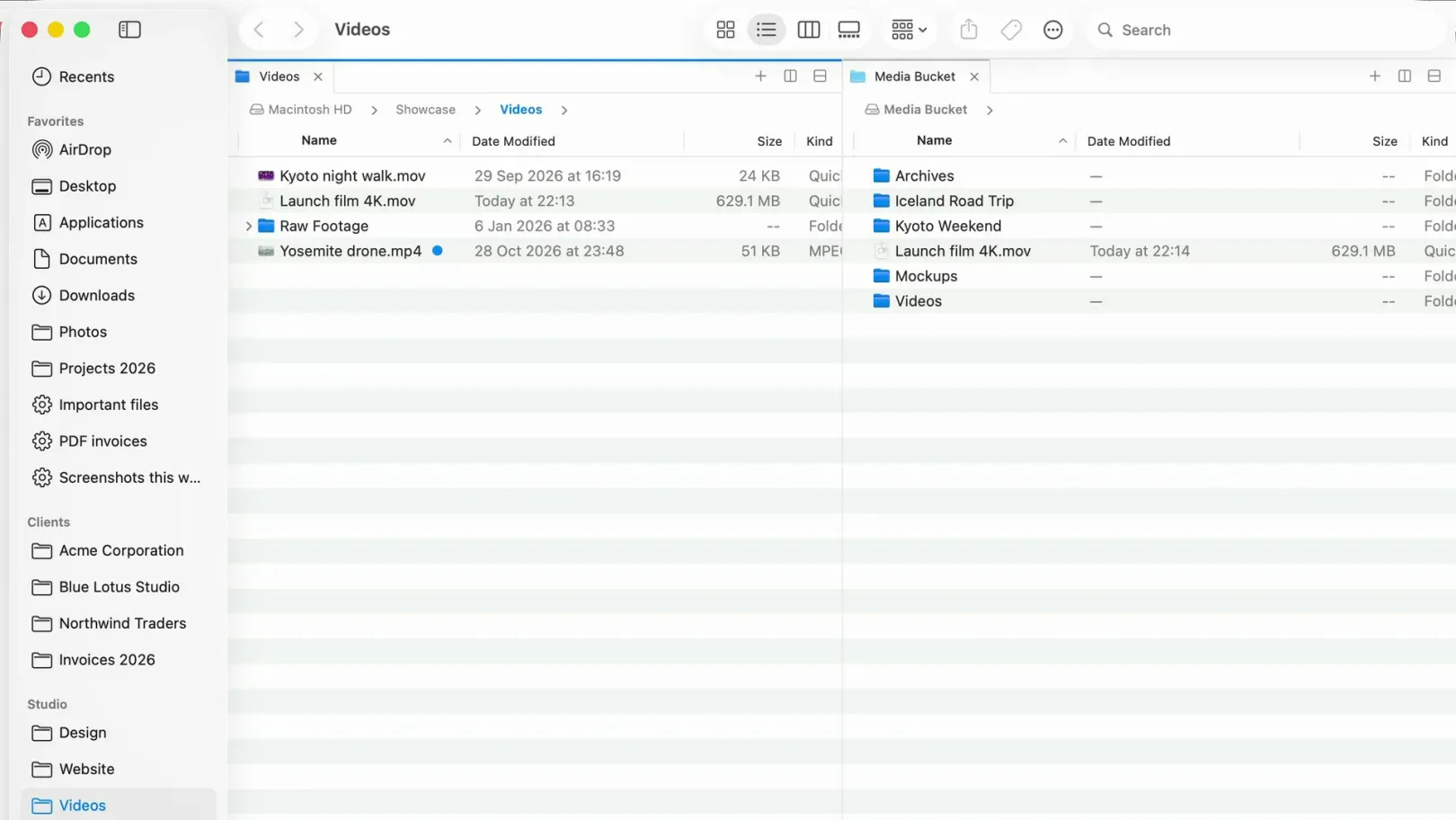
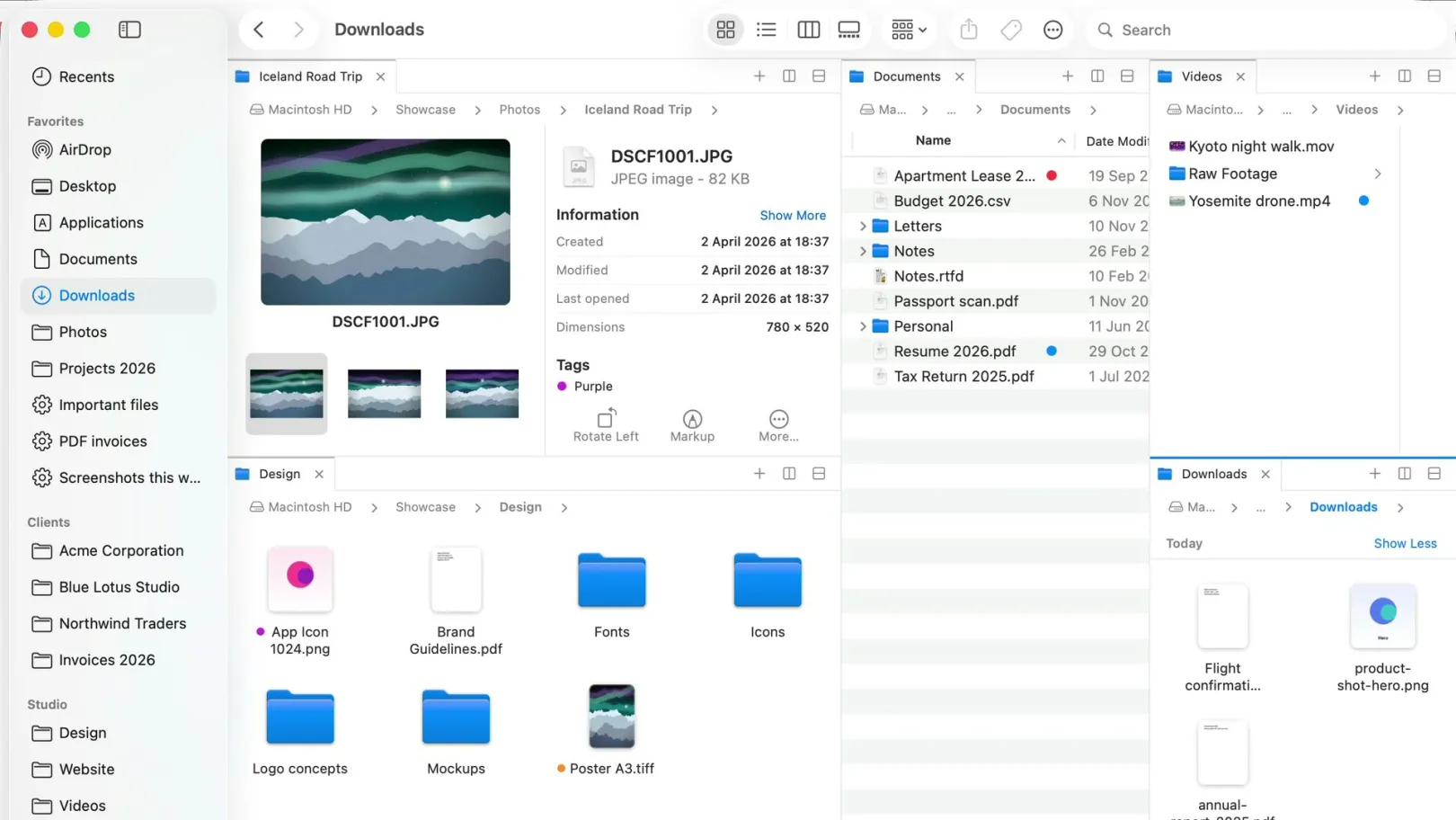
FileOctopus is our app. It works like Finder and shows the same cloud folders, through the same desktop apps. It never signs in to Google or Dropbox and makes no network connection for them, so it can't fix a sync problem; it does make the state easier to see.
- A status page. FileOctopus ▸ Settings… ▸ Cloud says in words whether Google Drive for desktop and Dropbox are installed, running and signed in, with buttons to download or open the app and Check Again.
- Same place as Finder. Each Google account, Dropbox and other providers in
~/Library/CloudStorage, such as OneDrive, get a row under Locations. Go → Google Drive and Go → Dropbox open them in the focused pane. - Not enabled yet? Opening a provider's folder that macOS hasn't enabled says why, with Enable in System Settings… and Try Again.
- Cloud status in every view. A small icon shows Not downloaded, Downloading, Uploading or failed states; click Not downloaded to download, as in Finder.
- No surprise downloads. Browsing and searching names never download a cloud-only file, and copying one out asks you to choose Download Now first.
Download Now, Remove Download and Open in Google Drive are in the Free plan; Copy Google Drive Link needs PRO. Two panes per window are Free too, so a Drive folder and a local folder can sit side by side. Details are in the cloud storage guide.
Keep in mind
- FileOctopus shows no Keep Downloaded pin and has no command for it, because macOS doesn't let other apps read or set it. Use Finder for that.
- A Dropbox folder outside your home folder, such as on an external disk, isn't found.
- Google shared drives, Google-native documents and mirror mode are not verified yet (limits page).
Questions people ask
Why did Google Drive move from Favorites to Locations?
Google Drive for desktop now streams through Apple's File Provider, which macOS lists under Locations. The older streaming method put Drive under Favorites, with its files in /Volumes/GoogleDrive (Google Drive Help).
Where is the Google Drive folder on a Mac?
In ~/Library/CloudStorage, the folder macOS uses for File Provider apps. Google says you can't change this location. Click the account under Locations in the Finder sidebar to open it.
Can I move my Dropbox folder back to my home folder?
Only by opting out of Dropbox on File Provider, in Dropbox's Advanced settings, after signing out and back in, per Dropbox Help, "Dropbox support for macOS on File Provider". The folder then appears under Favorites.
Can another file manager show Google Drive when Finder doesn't?
Not if the files aren't on your Mac. Apps such as FileOctopus read the same folders Google Drive for desktop and Dropbox create. Apps that sign in to Google Drive themselves, such as ForkLift, connect to the cloud directly (ForkLift alternative).
Want your cloud folders, disks and servers side by side in a window that works like Finder? Download FileOctopus; the Free plan has no time limit. For two folders at once in Finder itself, see two folders side by side.
Sources
Checked on 16 November 2026: Apple Support, Organize your files in the Finder on Mac and Store files in iCloud Drive on Mac (macOS 27); Google Drive Help, Use Google Drive for desktop, Use Drive for desktop on macOS and Fix problems in Drive for desktop; Dropbox Help, Dropbox support for macOS on File Provider, Dropbox sync icons for macOS and Make a file available offline. FileOctopus facts are from our cloud storage guide and limits page.