How-to
How to see two folders side by side on a Mac
Three built-in ways to put two Finder folders side by side on macOS, what each one can't do, and when a dual-pane file manager is worth it.
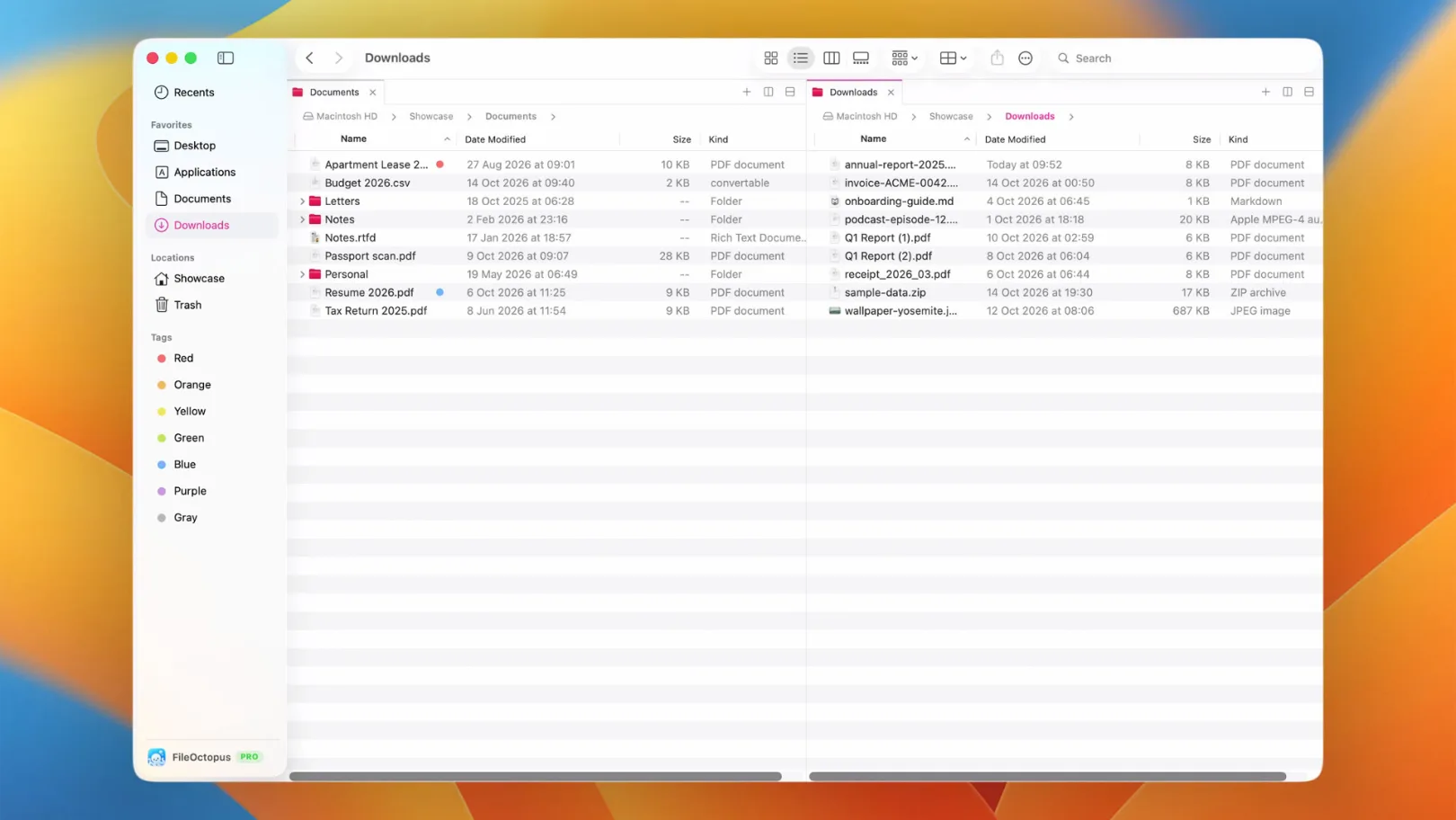
Finder shows one folder per window. When you sort downloads into projects, copy photos to an external drive or compare two versions of a folder, you want both locations in view at once. Windows users know this as a dual-pane file manager. On a Mac you have three built-in ways to get close, and a few apps that do it properly.
1. Tile two Finder windows
Since macOS 15 Sequoia, Finder windows can snap to half the screen like on Windows.
- Open a Finder window and press ⌘N for a second one.
- Drag the first window by its title bar to the left edge of the screen and let go when the outline appears. Drag the second one to the right edge.
- Or keep a window active and choose Window → Move & Resize → Left (or Right). The same items appear when you hold the pointer over the green button in the window's corner.
Now you can drag files between the two windows. Dragging moves a file on the same disk and copies it to another disk; hold ⌥ to always copy, or ⌘ to always move.
The catch: these are two separate windows. Another app can come between them, they don't reopen together after a restart, and on a laptop screen each half gets narrow. There is also no command to copy the selection to the other window; you drag every time.
2. Full-screen Split View
Hold the pointer over the green button of a Finder window and choose Full Screen → Left of Screen (the wording changes slightly between macOS versions). macOS then shows your other windows; click the second Finder window to fill the right half. Both share a full-screen Space, with a divider you can drag.
This keeps the pair together while you work, but it takes the whole screen and doesn't survive quitting Finder or restarting the Mac.
3. Finder tabs and Column view
If you don't need to see both folders at the same time, tabs are lighter. Press ⌘T for a new tab, then drag files onto the other tab's title in the tab bar to move them there. Column view (⌘3) also helps when the two folders share a parent, because you can see a few levels of the same path at once.
Neither of these is a real second pane, though: you can only look at one location at a time.
4. Use a file manager with panes
A dual-pane file manager puts two (or more) folders inside one window, remembers the layout, and has keyboard commands to copy or move the selection to the other side. There are several for the Mac, and they differ mostly in how much they change the Finder experience:
- Two-panel commanders such as ForkLift, Commander One and Nimble Commander follow the Total Commander tradition. They are strong when you also need FTP, SFTP or cloud storage connections.
- Layout-focused apps such as QSpace Pro offer many pane arrangements, and Marta is keyboard-driven and scriptable.
- Finder-like apps keep Finder's look and shortcuts and add panes on top. FileOctopus is in this group.
Most offer a free trial, so try two or three with your own folders before you pick one.
Two folders side by side in FileOctopus
FileOctopus keeps Finder's views, Quick Look and shortcuts, and adds panes to the same window:
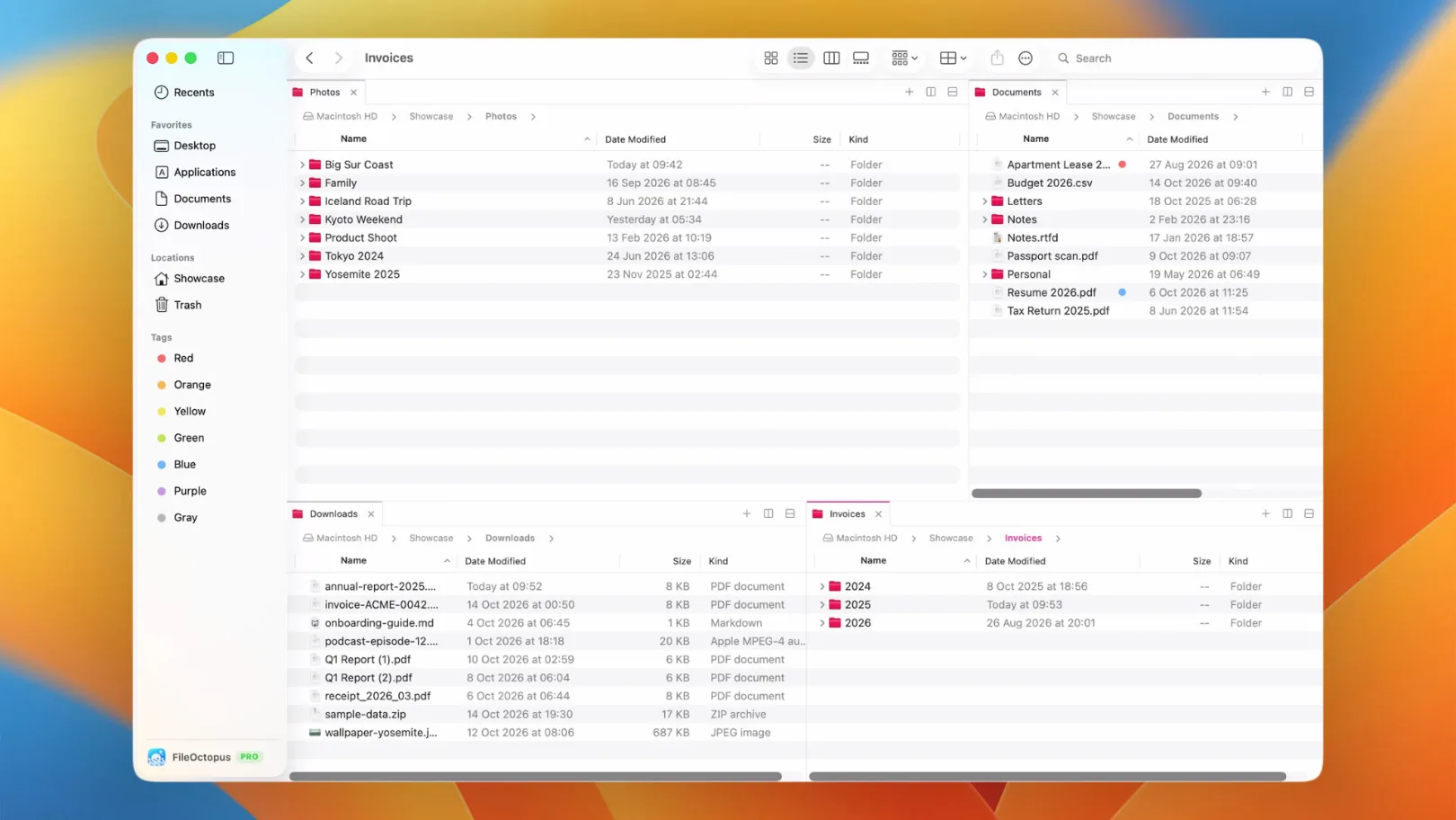
- Click the Pane Layout button in the toolbar (or choose View → Pane Layout) and pick Side by Side. Stacked puts one pane above the other.
- Click a pane to make it active. A thin line in your accent colour marks the pane that receives commands; ⌃⇧⌘← and ⌃⇧⌘→ switch panes from the keyboard.
- Select files and press ⌃⇧⌘C to copy them to the other pane, or ⌃⇧⌘M to move them. Your selection stays where it is, so you can keep going. Dragging between panes works like in Finder.
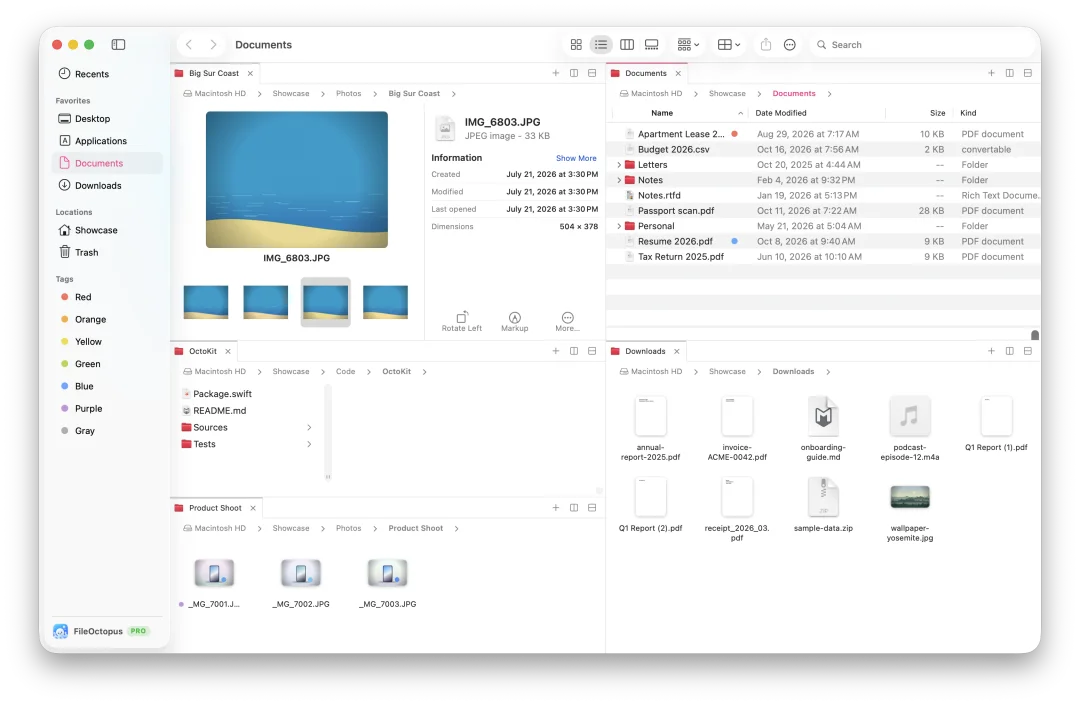
Every pane can be in its own view (List on the left, Gallery on the right, for example) and can have its own tabs. Name clashes open the usual Replace, Keep Both or Skip choice, and ⌘Z undoes the copy or move, even after you quit and reopen the app.
The Free plan allows two panes per window with no time limit. PRO, included for the first 14 days, allows up to 16 panes (a 2×2 grid, for example) and named workspaces that reopen a whole layout later. The tabs, panes and workspaces guide covers splitting further, resizing and pane tabs.
Which option to choose
| If you… | Try |
|---|---|
| need two folders once in a while | Tiling two Finder windows |
| work on a large display and want nothing extra installed | Split View or tiled windows |
| move files between the same places every day | A file manager with panes |
| also connect to FTP, SFTP or cloud servers | A two-panel commander |
| want Finder's look and shortcuts, plus panes | FileOctopus |