How FileOctopus avoids losing your files
The three rules behind every copy, move and Trash in FileOctopus, the checks that enforce them, what they cost in time, and the bugs that taught us.
In short
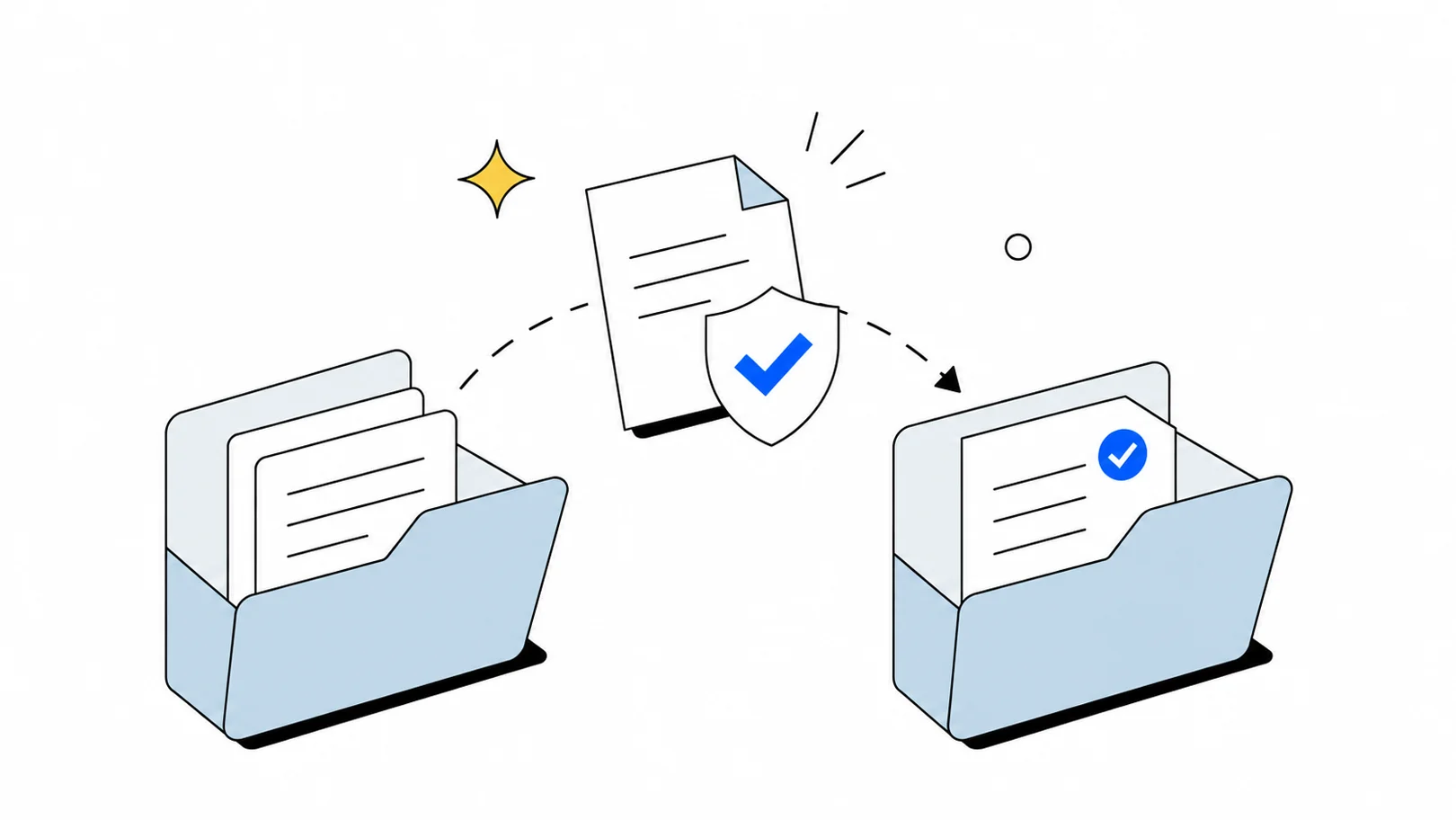
- Nothing is replaced unless you say so. A name that is taken stops the operation and asks. The default answer keeps both.
- Trash means Trash. If an item can't go to the Trash, it stays where it is. It is never deleted instead.
- A move removes the original last. The copy is written, flushed to disk, read back and compared first.
- The cost: a 10 GB move to another disk took 42 s, about 14 s of it checking (Mac mini with M4, macOS 27.0, FileOctopus 1.1.3).
Most bugs in an app cost you time. A bug in a file manager can cost you a file, and you may only notice weeks later.
So FileOctopus has three rules that no feature may break. Every copy, move, rename and Trash in the app goes through one engine that enforces them. A view or a menu command can't delete or overwrite anything by itself. This post describes the rules, the checks behind them, what they cost in time, and the bugs that taught us.
Rule 1: nothing is replaced unless you say so
When a name is taken, FileOctopus stops and shows both items with their size and date. The default button is Keep Both. Replace is there, marked as destructive.
Asking is the easy part. The hard part is the time between your answer and the change:
- The item changed while the question was open. If the file you chose to replace was edited or swapped meanwhile, FileOctopus asks again. An earlier answer is never used for a different file.
- Something appeared at the name after the check. The final rename uses a system call that refuses an existing name.
renameatx_np(fromParent, fromName, toParent, toName, UInt32(RENAME_EXCL))On APFS this is atomic: either the name was free and the rename happened, or nothing happened.
The disks that don't have that call
SMB shares and exFAT drives answer "not supported" to RENAME_EXCL, and their ordinary rename silently replaces whatever is at the new name.
There, FileOctopus first reserves the name with an exclusive create, which the server or the disk decides itself. If the name exists, even from another Mac a moment ago, the reservation fails and nothing is renamed. The rename then replaces only that empty reservation, checked right before.
The gap that is left. If another process deletes the empty reservation and puts its own item at the same name in the instant between the last check and the rename, that item is replaced. Without the atomic call this can't be closed. An item that was merely created there is never replaced.
Rule 2: Trash means Trash
Some apps fall back to deleting when the Trash doesn't work. FileOctopus has no such path. The part of the engine that talks to the Trash has two allowed outcomes: the item is in a Trash, or an error. The rule is written in the code's own contract:
An adapter must either move the item to a Trash or throw; it must never fall back to deleting it.
| Situation | What happens |
|---|---|
| The Trash refuses the item | It stays where it is, and you're told why. |
| A network share, which has no Trash | You're asked first, in Finder's words: "This item will be deleted immediately." Only Delete removes it. |
| An item changed after you were asked | It is kept. |
| Replace a folder | The old folder goes to the Trash, only after the new one is copied and checked. Undo puts it back. |
| Empty Trash | Removes only what was listed when you confirmed. |
Rule 3: a move removes the original last
A move to another disk is a copy followed by a delete. The delete is where files get lost, so it comes last:
- Copy. The original is read once. Its SHA-256 checksum is taken while it is copied.
- Flush. The copy is forced out of memory onto the disk.
- Read back. The copy is read again from the disk, past the system cache, and compared with the checksum, the size and the metadata.
- Put in place. The copy gets its final name.
- Check the original once more. It must still be exactly what was copied.
- Remove the original. Only now.
If a step fails, the operation stops and the original is untouched. The progress row shows the steps as they happen: Copying, Verifying, Checking the copy.
What the checks cost, and how we cut it
Until 1.1.3, step 5 read the whole original a second time. A customer wrote that this took too long with big files and held up other transfers. He was right.
The second read existed for one case: another app rewriting the original after the copy, then putting the size and date back. In 1.1.3 FileOctopus proves that didn't happen without reading. APFS keeps a change time for every file that moves on every write and that no app can set. If it hasn't moved since the copy read the file, the file hasn't changed.
| 10 GB move | Before the change | FileOctopus 1.1.3 |
|---|---|---|
| Total | 55.1 s | 42.1 s |
| Final check of the original | 13.3 s | 0.02 s |
| Bytes of the original read again | 10 GB | 0 |
| Read-back of the copy | 13.4 s | 13.7 s (kept) |
The shortcut isn't used everywhere. exFAT and FAT disks let an app set the change time, HFS+ counts it in whole seconds, and a network share can't be trusted with it. Originals there are still read again. That is slower, but the proof doesn't hold on those disks.
Undo refuses rather than guesses
⌘Z works on file operations, also after you quit: the last 20 steps are kept for 24 hours. The saved steps hold names, locations and checksums, never file contents, and they stay on your Mac.
Before it undoes anything, FileOctopus checks that each item is still the same file, in the same place and unchanged. If something changed, the menu says Can't Undo with the reason. It never undoes an older step in its place.
Where we got it wrong
The rules held, but the code around them didn't always work. From our release notes:
| Fixed in | What was wrong |
|---|---|
| 1.0.5 | Copy, move and rename failed on SMB shares and USB sticks, and could leave a hidden staging item behind. The checks assumed things only APFS provides. |
| 1.0.7 | Empty Trash could remove an item another app put in the Trash while the question was open. |
| 1.1.2 | Undo of Move to Trash on external disks said the item had changed and left it in the Trash. |
| 1.1.2 | Copies to some NAS shares failed the check because the server spelled accented names differently. |
Three of the four are the same lesson: a check that is too strict fails safe, because your file is still there, but it still fails. Nearly all of them came from user reports.
What isn't covered
- A copy between drives that is interrupted (power, cable) isn't verified in every setup yet. FileOctopus keeps a local journal and shows a recovery report with the items to look at.
- Files that are only in the cloud can't be moved or put in the Trash until they are downloaded.
- On NAS shares that give a file a new ID on every rename, Replace and folder Merge are refused, because the result can't be checked.
The full list is on the current limits page, and the file operations guide describes each sheet and message. FileOctopus is not a backup. These rules are about not making things worse.