Finder search not working or slow on Mac: causes and fixes
Why Finder search finds nothing, the wrong files or takes seconds to finish, and the checks to run in order: scope, names only, Spotlight index, rebuild.
You type a file name into a Finder window and get nothing, or the wrong files, or a list that keeps loading for ten seconds. Both problems have a short list of causes, and most of them are settings you can check in a minute. This page goes through them in the order we'd check them, first for Finder on its own, then for when a separate search app is worth it.
Everything here applies to recent macOS versions, including macOS 15 Sequoia, macOS 26 Tahoe and macOS 27. If the problem is Spotlight itself (⌘Space finds nothing either), see Spotlight not finding files on macOS Tahoe as well.
First, how Finder search works
Finder doesn't look through your disk when you search. It asks Spotlight, the system-wide index that macOS keeps in the background, for every item that matches. That explains most problems: if Spotlight hasn't indexed a folder, is told to skip it, or has a damaged index, Finder can't find what is there. And because Finder's default search matches file names and the text inside documents, a common word returns many more items than you expect, which makes the list slow to settle.
A one-minute test: is it Finder or the index?
Open Terminal (in Applications ▸ Utilities) and ask Spotlight directly for a file you know exists, using part of its name:
mdfind -name "invoice"- Terminal lists the file but Finder doesn't: the index is fine. The cause is Finder's scope or search criteria, or Finder itself. Start with the next section.
- Terminal doesn't list it either: Spotlight hasn't indexed it. Skip to when the index is the problem.
To see whether indexing is turned on for your startup disk, run mdutil -s /. It should say "Indexing enabled." For an external disk, use its path, for example mdutil -s /Volumes/Backup. Neither command changes anything.
When Finder finds nothing, or the wrong files
1. Check where Finder is searching
Below the search field Finder shows the scope: This Mac, or the current folder's name. If you're in a folder but the search ran on This Mac, you get matches from everywhere; if it ran on the folder, you miss everything outside it. Click the scope you meant. To change what Finder starts with, choose Finder ▸ Settings ▸ Advanced and set When performing a search to Search This Mac, Search the Current Folder or Use the Previous Search Scope.
Some users report that a search of the current folder returns nothing while the same search on This Mac works. If that happens to you, try This Mac before anything else.
2. Search names, not contents
As you type, Finder offers suggestions under the search field. Choose the Name Contains suggestion, or type name: before the word (name:invoice), to search file names only. Without it, a file that merely mentions the word appears next to the one named after it, and the file you want can drown in the list.
Also check for leftover rules. If you clicked + under the search field earlier, rows such as Kind or Last opened date stay until you remove them with −, and they quietly narrow every result.
3. Include system files and hidden folders
Finder leaves system files out of searches. If you're looking for something inside a Library folder, click + under the search field, open the first menu, choose Other…, tick System files, then set the new row to are included. Spotlight doesn't index most hidden folders at all, so a file in one won't appear in Finder whatever you set.
4. Relaunch Finder
Finder sometimes gets stuck with an empty or frozen result list. Hold ⌥, Control-click the Finder icon in the Dock and choose Relaunch. Or press ⌥⌘Esc, select Finder and click Relaunch.
When the index is the problem
5. Give Spotlight time after an update
After a macOS update or a migration, Spotlight often re-indexes the whole disk. Until it finishes, searches are incomplete. Apple says indexing can take hours or even days depending on how much data you have, and finishes faster when the Mac is idle and connected to power. In Activity Monitor, processes named mds, mds_stores and mdworker using a lot of CPU are a sign it is still working.
6. Make sure the folder isn't excluded
Open System Settings ▸ Spotlight (Siri & Spotlight on older versions) and click Search Privacy at the bottom. Any disk or folder in that list is skipped by Spotlight, and so by Finder. Select one you want searched and click −.
7. Rebuild the index
Apple's own fix is to add the disk or folder to the Search Privacy list, wait a few seconds, remove it again and click Done; Spotlight then re-indexes it (Apple Support, checked 26 October 2026). The Terminal equivalent for the startup disk is:
sudo mdutil -E /It asks for your administrator password, erases the index and rebuilds it. If mdutil -s / said indexing was disabled, turn it back on with sudo mdutil -i on /. Either way you're back to step 5: search stays incomplete until the rebuild finishes.
8. External and network drives
Check an external disk with mdutil -s /Volumes/DiskName. If indexing is off and you want the disk searchable, run sudo mdutil -i on /Volumes/DiskName. Network shares are a different case: whether Finder can search them depends on the server, and some servers don't offer Spotlight search at all.
When Finder search is just slow
Slow and broken are different problems. Finder usually shows its first matches quickly; it's the rest of the list that takes time, because it keeps adding and re-sorting items as Spotlight answers. We timed this on a Mac mini with M4 over a library of 146,190 files (the full benchmark): Finder's default search took a median of 10.2 seconds to finish, and the same searches restricted to names took 5.0 seconds. Both showed their first rows after about 0.3 seconds.
So the two settings above are also the speed fixes:
- Search names only with Name Contains or
name:. In our test that halved the wait. - Search the current folder instead of This Mac when you know roughly where the file is. Fewer files means less to sort.
If search was fast before and has turned slow, the index may be rebuilding (step 5), or a large new folder of documents is being read for the first time.
When a separate search app helps
Search apps fall into two groups, and the difference matters when Spotlight is the problem:
- Apps that use the Spotlight index, such as HoudahSpot, add a better interface and more precise criteria. Its maker says it "builds on the same Spotlight index used by macOS", so a broken index affects it too (Houdah blog, checked 26 October 2026).
- Apps that read the disk themselves, such as Find Any File, find files by name, size or date even where Spotlight hasn't indexed them, according to its website (checked 26 October 2026). If you need to search a whole disk, including system and hidden folders, it is a good choice.
How FileOctopus searches
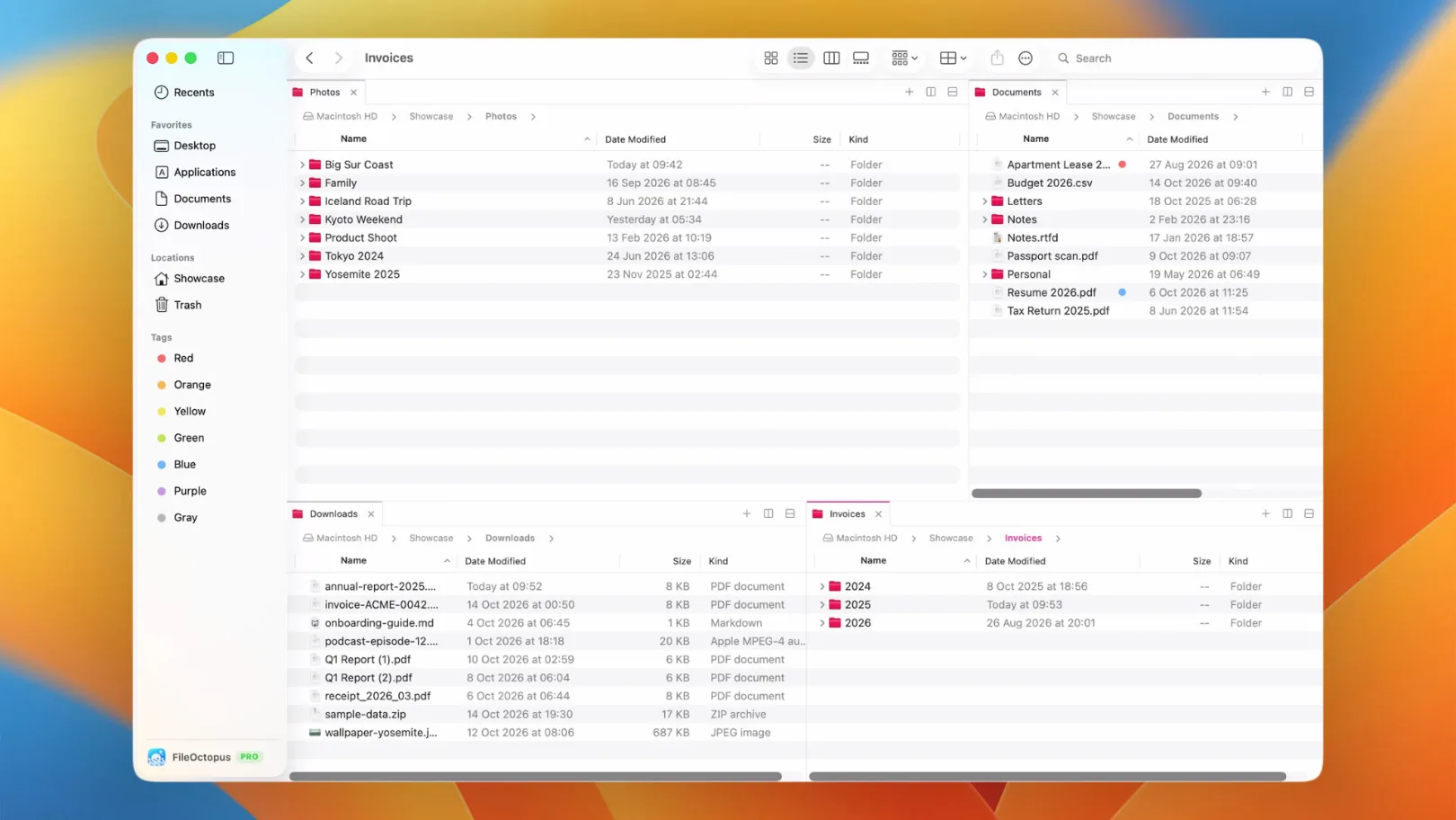
FileOctopus is a file manager that works like Finder: the same views and shortcuts, with panes and tabs. Its search sits between the two groups above. For the folders you add in FileOctopus ▸ Settings… ▸ Search, it keeps its own index of file names, so a search of those folders is a lookup that doesn't depend on Spotlight having indexed them. Find can add Spotlight's results on top, and those depend on macOS indexing as usual.
- Speed: in the same benchmark on the Mac mini with M4, FileOctopus finished in a median of 0.52 seconds, about 20 times sooner than Finder's default search and about 10 times sooner than Finder searching names only. First rows appeared at about the same moment as Finder's. On a MacBook Pro with M3 Max our earlier run measured 29 times against Finder's default search.
- Scope you can read: the search bar shows the folder, This Mac or Open Panes, and Settings ▸ Advanced has the same "When performing a search" choice as Finder. This Mac covers only the folders you approved; FileOctopus doesn't scan your whole disk.
- Status instead of silence: Search settings show each folder as Indexing…, Updating…, Paused, Offline or No access, so an incomplete result has a visible reason.
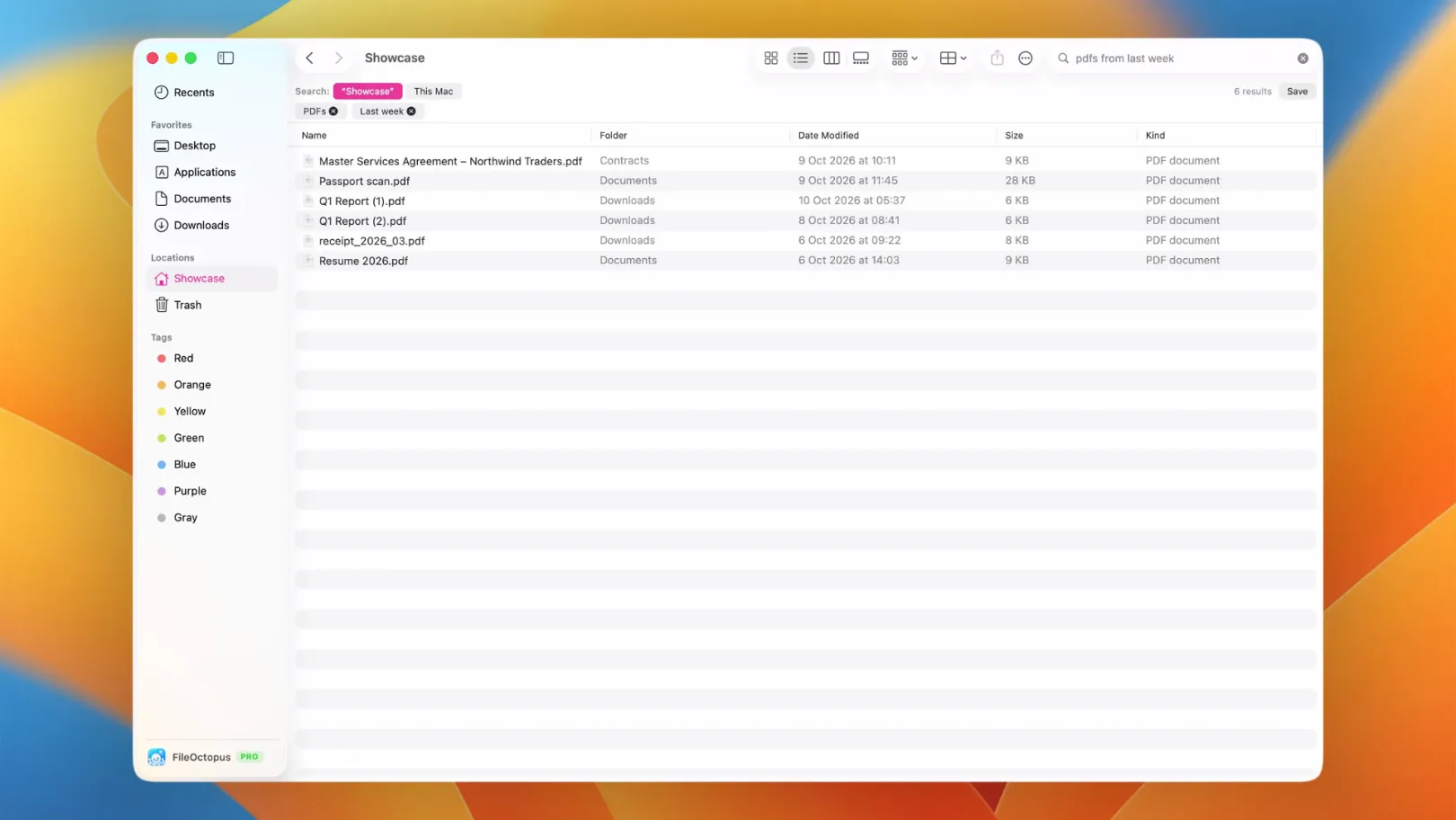
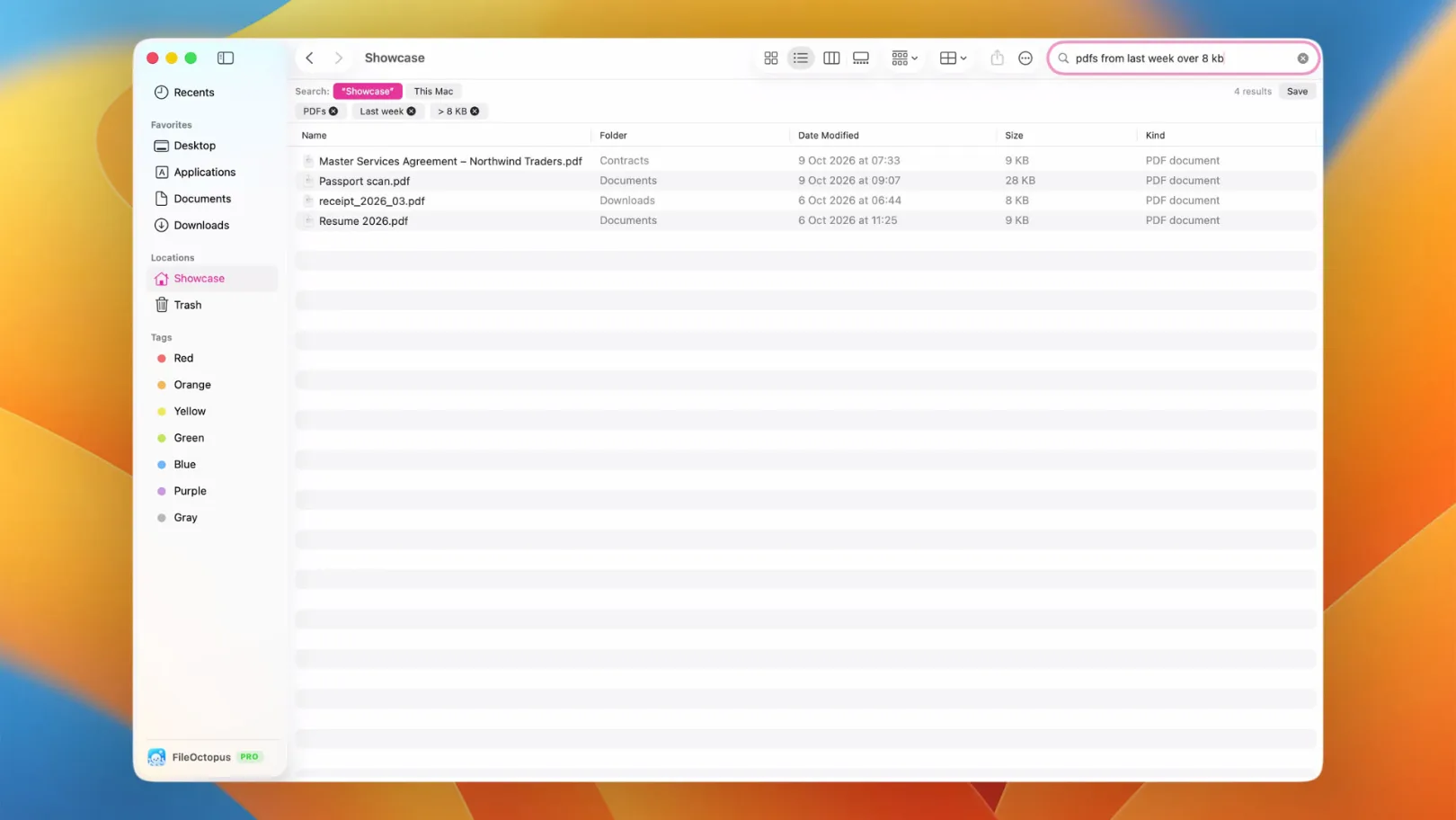
- Filters you can see: a query such as
pdfs from last week over 8 kbturns into chips you can edit or remove. See supported phrases.
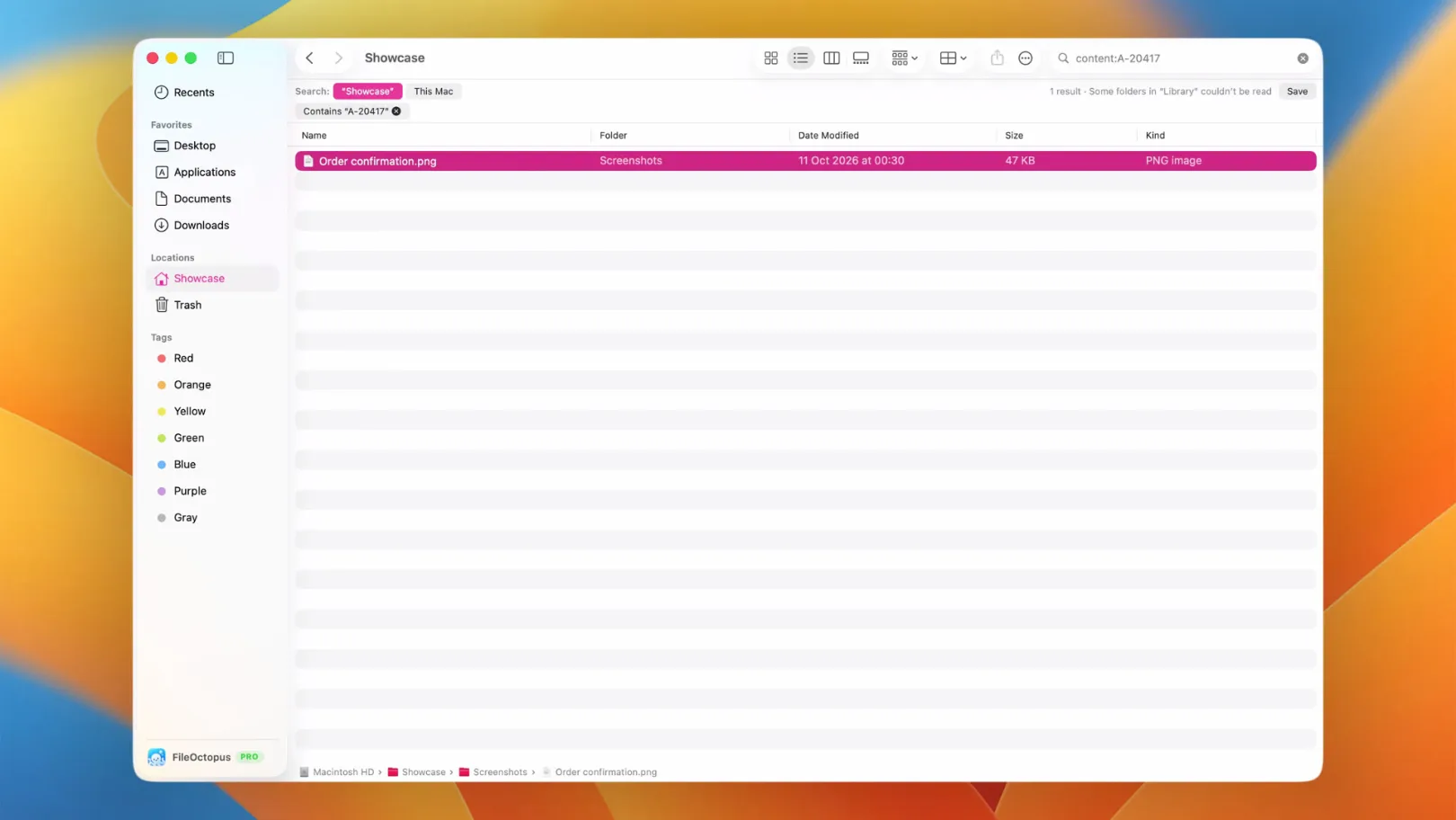
Filename and Spotlight search are in the Free plan. Searching the text inside documents and in screenshots is part of PRO and is off until you turn it on for a folder; the content search guide lists the supported formats and limits. FileOctopus needs Apple Silicon and macOS 15 or later. The search guide and Search settings cover the details, and pricing shows the plans.
Checklist
| Symptom | Check first |
|---|---|
Finder finds nothing, mdfind finds the file | Scope, leftover rules, relaunch Finder |
| Neither finds it | Indexing status, Search Privacy list, then rebuild |
| Too many results | Name Contains or name: |
| File is in a Library or hidden folder | System files rule, or an app that reads the disk |
| External disk not searched | mdutil -s on its path |
| Results take seconds to settle | Names only, current folder, or a separate filename index |