Moving between two folders
Stop juggling windows. Put both folders in one window, side by side or stacked, and save the layout as a workspace.
See Split ViewA file manager for Mac that feels like Finder
The same views, shortcuts and Quick Look you use every day — plus split panes, search you can see through, and file actions you can undo.
Development preview · Apple Silicon · macOS 15+
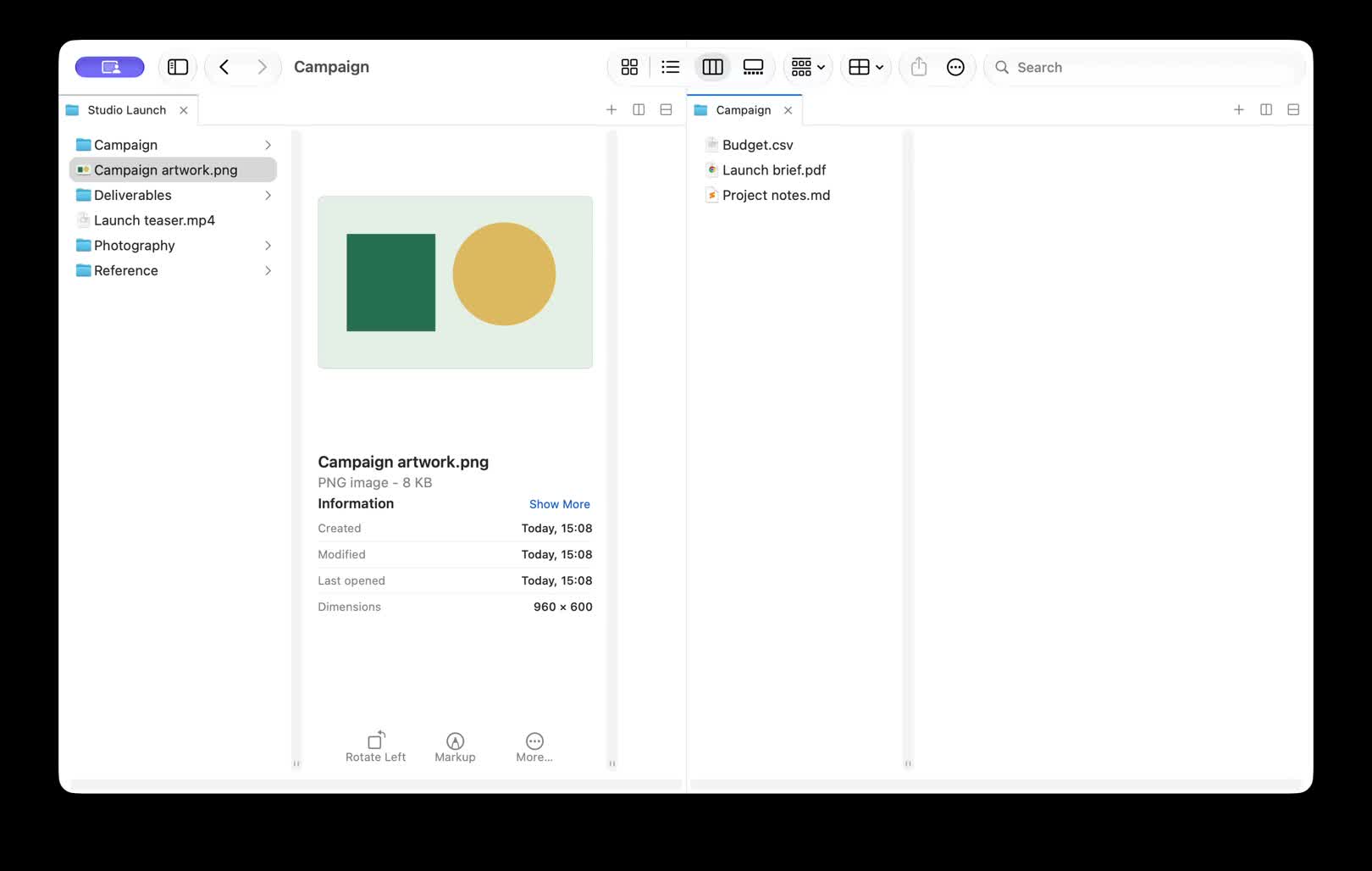
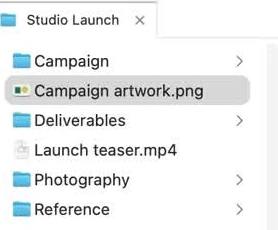
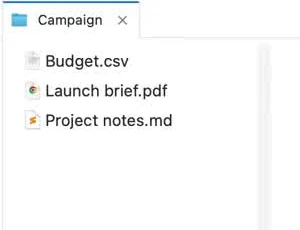
Real FileOctopus development build · fictional demo files · See what stays the same · Public download follows release validation
Built natively for
Why people switch
FileOctopus doesn’t ask you to learn a new file manager. It fixes the moments where the one you have gets in the way.
Stop juggling windows. Put both folders in one window, side by side or stacked, and save the layout as a workspace.
See Split ViewType what you remember — “PDFs from last week” — and see the filters it became. Search looks only in folders you approved.
See SearchPreview a batch rename before it runs, keep both files when names clash, and undo an operation when it’s safe to reverse.
See safe actions01 · Split View and workspaces
Split a window side by side, stacked, or into a 2×2 grid. Drag a tab into another pane or another window. Name the layout and open it again later — FileOctopus also brings it back after a relaunch.
How panes and workspaces work02 · Search you can see through
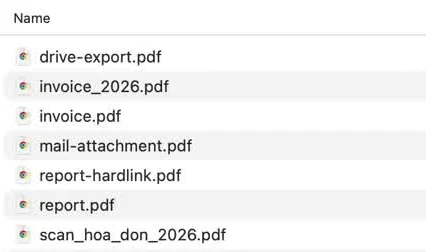
Type “pdfs from last week” and FileOctopus turns it into PDF and Last week chips you can edit or remove. Results come only from the folders you approved. Save a search and it stays live in your sidebar.
Rule-based and local, not AI. Searching inside files and images is a separate opt-in for each folder.
How search works

03 · Changes you can take back
Batch rename shows every new name before anything changes. A name clash defaults to Keep Both, and folders are never silently replaced. Moving to another disk removes the original only after the copy is verified. Rename, move, duplicate and Move to Trash can be undone while the files are unchanged.
Read about file actionsCopy or move into a folder that already has the name, and nothing is overwritten unless you choose Replace for a file.
A move to another volume deletes the source only after the copy is checked and written to disk.
Add files from different folders to the window’s Shelf, then copy or move them into the active pane in one step.
Shelf, rename and saved searchesMade to feel like Finder
Icon, List, Column and Gallery. Space for Quick Look. ⌘F, ⌘1–4 and type-to-select. Right-click menus in Finder’s order. Your hands already know FileOctopus.
Icon · List · Column · Gallery
Switch with ⌘1–4, group and sort with View Options, and type a name to jump to it.
Explore browsingQuick Look · Preview · Get Info
The preview pane (⇧⌘P) shows image, video, audio and PDF details beside your files.
Preview and file information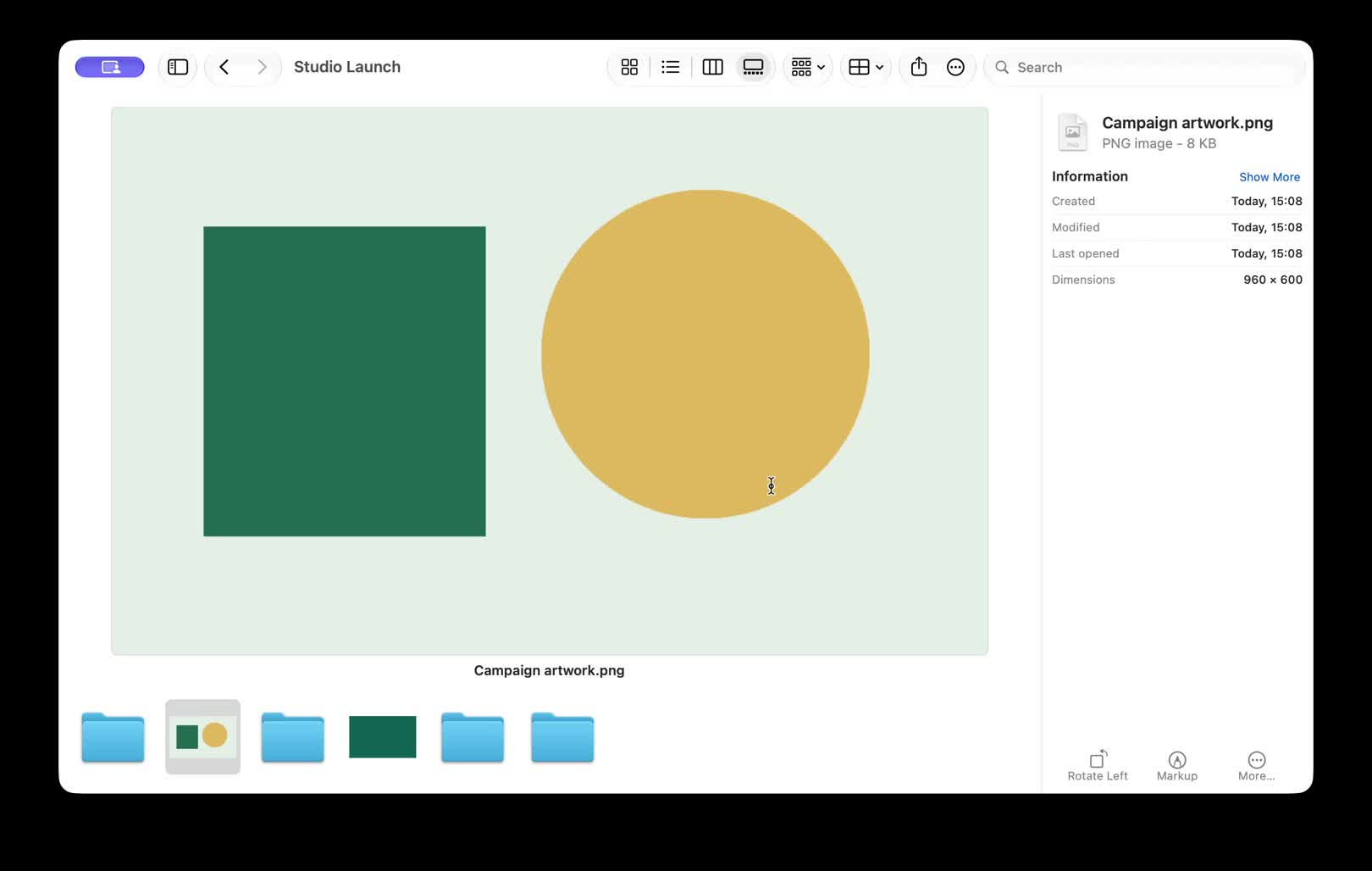
Keyboard · Menus · Settings
⌘⌫, ⌘Z, ⌘D and the Go menu work as usual. Each pane has a clickable path bar; Settings (⌘,) holds familiar options.
Keyboard shortcuts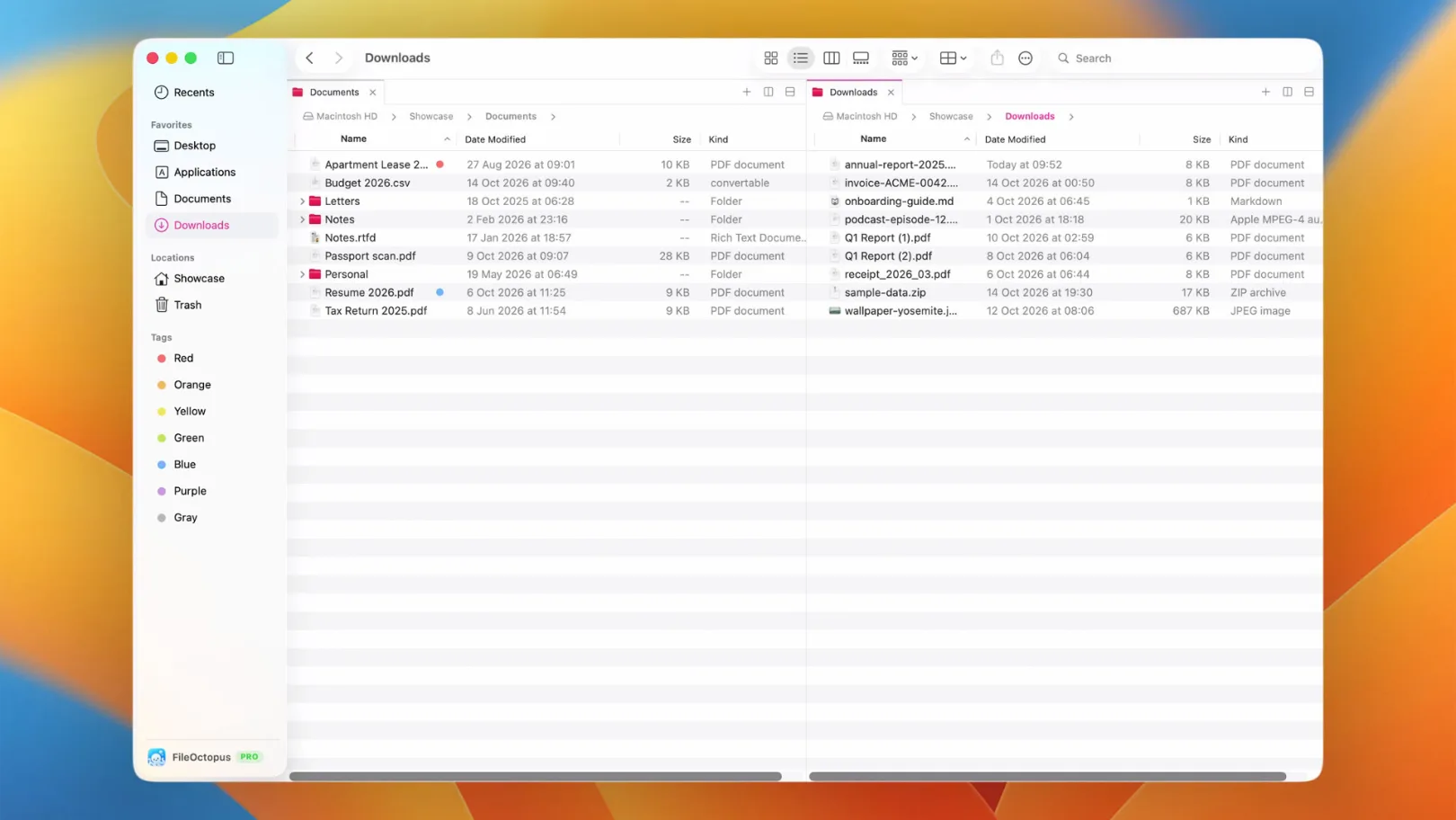
Actual app captures with fictional files. Quick Action buttons visible in the browsing clip run only in test fixtures.
What FileOctopus adds
Everything on the left works the way it does in Finder. The right is what you gain.
Status as of the development build. Some Finder features are not there yet — see the current limits.
Local by design
Your folders, your choice. FileOctopus indexes only the search locations you approve. Content and image-text search have separate per-folder opt-ins.
No account, no analytics. Browsing and search work locally, with no sign-in, tracking, sync, or external AI service.
A Mac app, through and through. Built with Swift and AppKit for Apple Silicon Macs running macOS 15 or later.
Privacy and permissionsGood to know
Yes, as a separate app: open it instead of Finder for everyday file work. It does not replace the Desktop, the Dock, or the Open and Save dialogs, and Finder keeps running alongside it.
⌘F, ⌘1–4, Space, ⌘⌫, ⌘Z, type-to-select and the Go menu behave as they do in Finder. Pane commands are additions; you can rebind them in System Settings ▸ Keyboard. See the shortcut list.
FileOctopus is a development build. A signed, notarized public download has not been released. You can explore the real app demos and current feature status here.
No. “This Mac” search covers the folders you have approved for FileOctopus indexing. You can inspect and change those locations in Search settings.
Supported phrases are interpreted locally into visible, editable filters. It is rule-based search, not semantic AI. Core browsing and search do not require a cloud account.
There is no Compress command, no folder merge, no linked panes or duplicate finder, and the Shelf lasts for one window. The current limits page lists the rest.
They show the real development app using disposable fictional files. Some clips have faster playback; each caption notes its scope and limits.

FileOctopus for Mac
See the real development build in action, then read how each feature behaves.
Development build · Apple Silicon · macOS 15+