Comparisons
FileOctopus vs Finder: what stays the same, what you gain
A side-by-side look at Finder and FileOctopus: the views and shortcuts that stay the same, what FileOctopus adds, and what it can't do yet.
Finder is good at the basics. It is fast to open, it knows your disks and cloud folders, and your hands already know its shortcuts. Most people who look for a Finder alternative don't want to lose any of that. They want the same thing with a few gaps filled: two folders side by side, a copy they can pause, an undo that still works tomorrow.
That is the brief FileOctopus was built to. This page lists what stays the same, what you gain, and what is still missing, so you can decide in a few minutes whether it fits how you work.
What stays the same
FileOctopus is a separate app. It runs next to Finder and doesn't replace or modify it, so the Desktop, the Dock and the Open and Save dialogs keep working as before. Inside its windows, the parts you use every day behave like Finder:
- The four views: Icon, List, Column and Gallery, switched with ⌘1 to ⌘4.
- Quick Look with Space, type-to-select, and the usual menu shortcuts such as ⌘N, ⇧⌘N, ⌘⌫ and ⌥⌘C (Copy as Pathname).
- Window tabs, the sidebar, tags, the Go menu and Connect to Server.
- Google Drive, Dropbox and iCloud Drive through their own desktop apps, with cloud status and Download Now.
- Undo for rename, move and Move to Trash.
It is a native Mac app written in Swift and AppKit, not a web page in a wrapper, so menus, text fields, selection and drag and drop behave the way the rest of macOS does.
What you gain
This is the comparison from the FileOctopus home page, with Finder as it ships with macOS:
| Feature | Finder | FileOctopus |
|---|---|---|
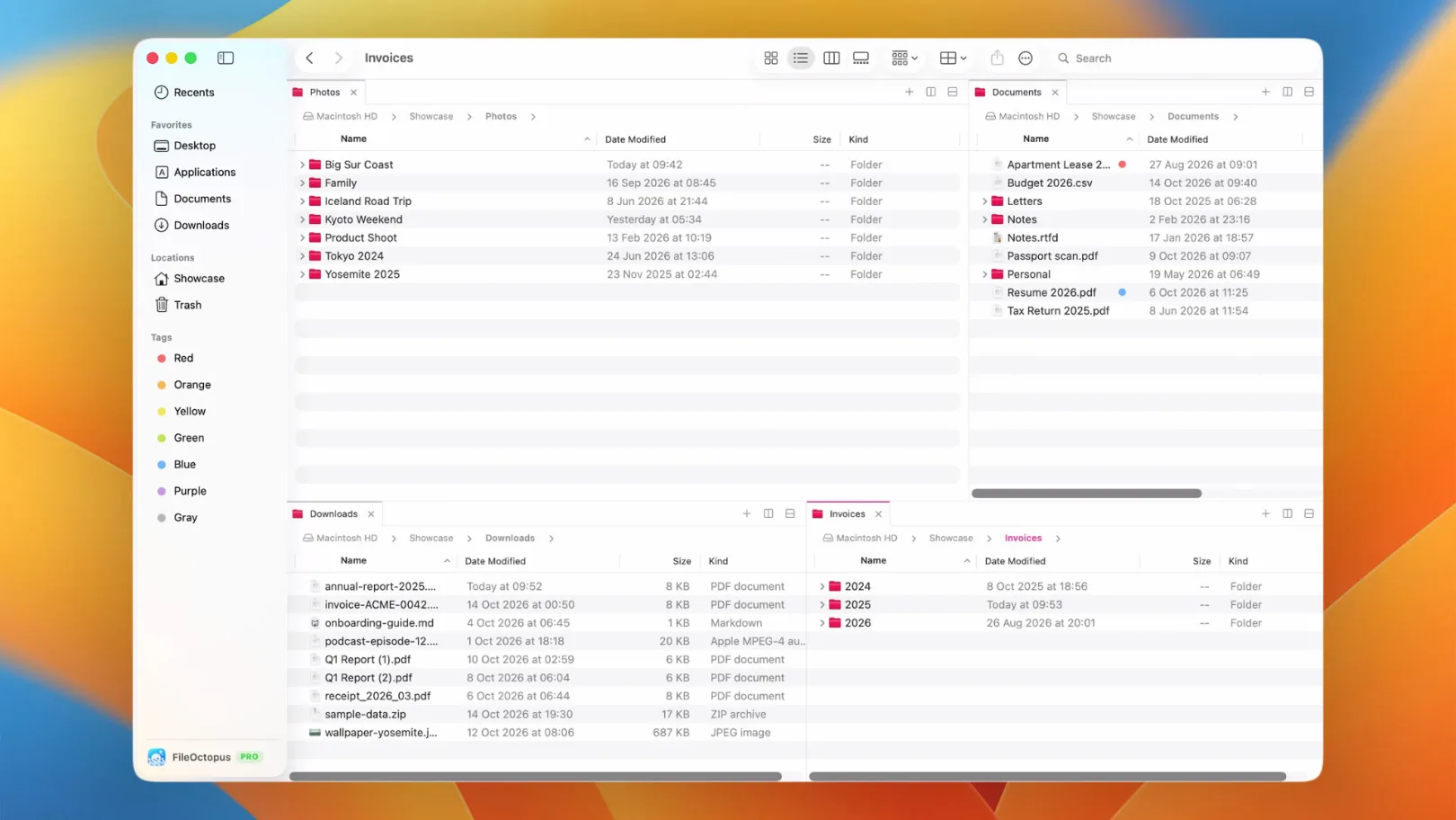
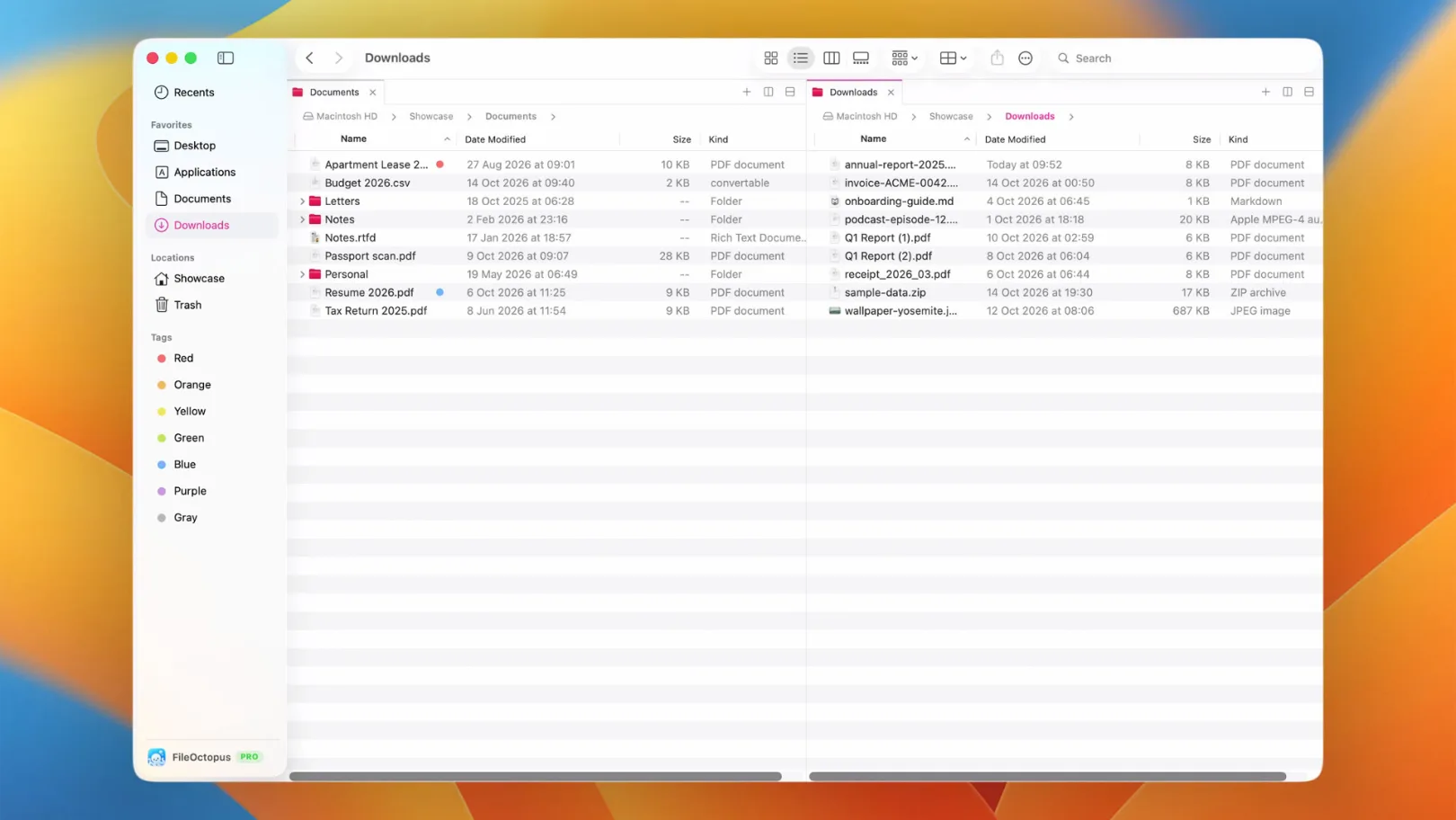
| Two folders side by side in one window | No | Yes (2 panes in Free) |
| Copy or move the selection to the other pane | No | Yes |
| Pause and resume copies and moves | No | Yes (queueing is PRO) |
| Undo after you quit and reopen | No | Yes |
| Merge two folders, with a preview first | Limited (Option-drag, no preview) | Yes |
| Batch rename with a preview of every new name | Limited (shows one example) | Yes |
| Quick Open and a Command Palette | No | Yes |
| Your own keyboard shortcuts, with Explorer and Total Commander profiles | Limited (App Shortcuts in System Settings) | Yes |
| Sidebar groups, renamed favorites and hidden disks | No | Yes |
| Reopen split panes and Back history after you quit | Limited (windows only) | Yes |
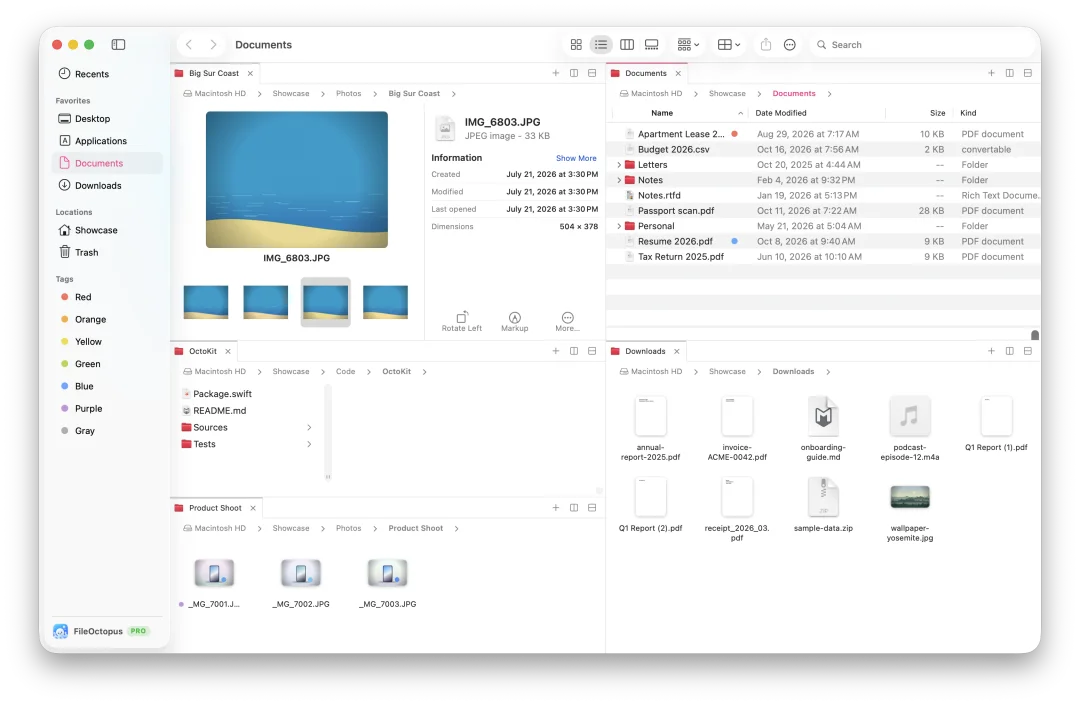
| Up to 16 panes, including a 2×2 grid | No | PRO |
| Named workspaces that reopen a whole layout | No | PRO |
| A Shelf to collect files from many folders | No | PRO |
| Saved searches in the sidebar | Yes (Smart Folders) | PRO |
Search that finishes
Finder's ⌘F searches names and contents through Spotlight, and on a big folder you often wait for the list to settle. FileOctopus keeps its own filename index for the locations you approve, so results appear as you type. In our test on 146,190 files, results were complete 29 times sooner than with Finder's default search (a median of 0.27 s against 7.7 s over 12 searches on an M3 Max). That comparison is not like for like: Finder searched names and contents, FileOctopus searched names only. The benchmark write-up has the method and every trial. Content search, including text inside screenshots and scanned PDFs, is there too, but you turn it on per folder.
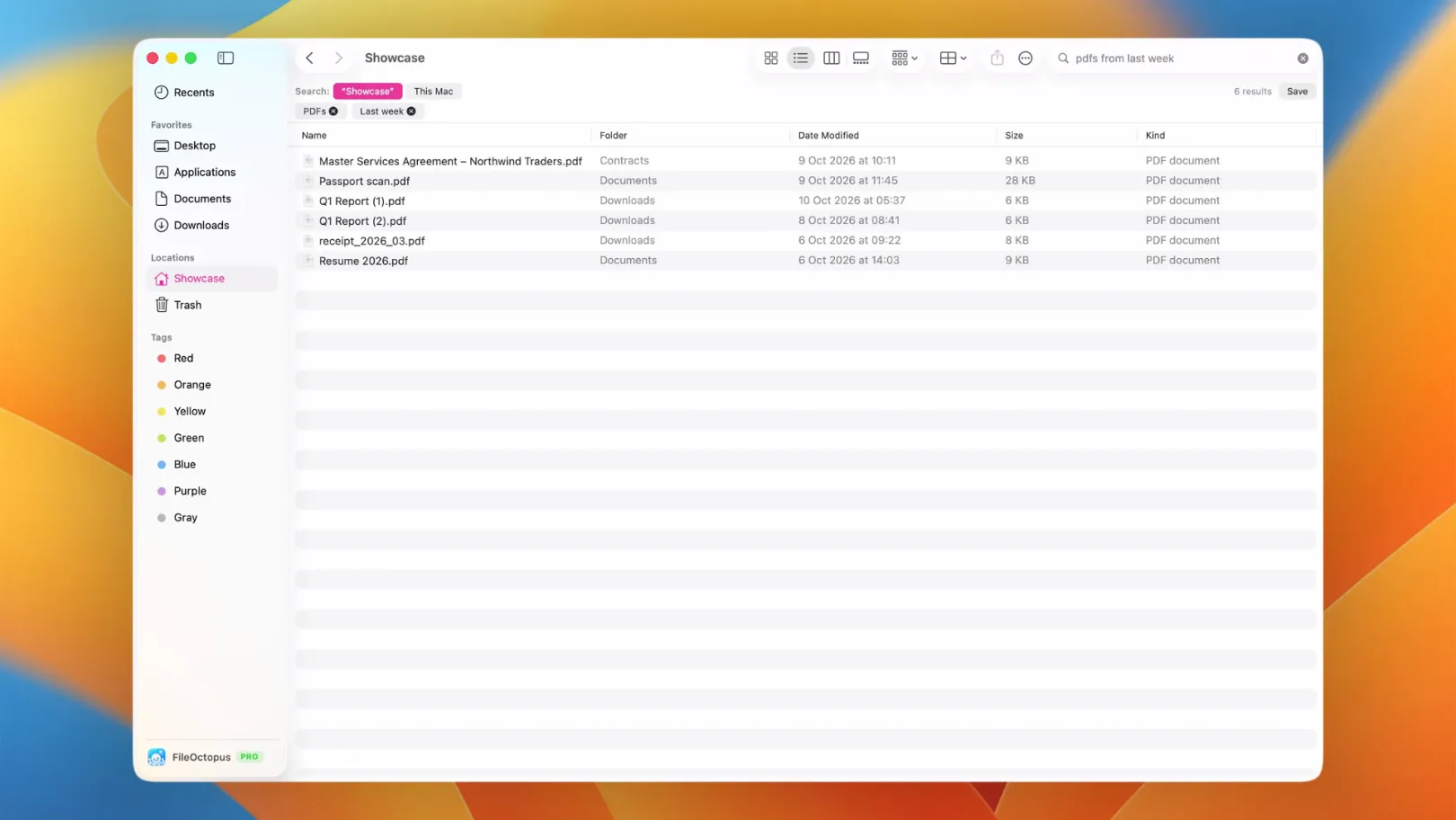
You can also type plain phrases such as pdfs from last week larger than 5 MB. They become ordinary filters you can see and edit. This runs on your Mac with fixed rules; it isn't an AI model and nothing is sent anywhere.
File operations that ask first
When a copy meets a file with the same name, FileOctopus asks what to do for each conflict and defaults to keeping both. Long copies show progress in one panel where you can pause them, and problems are collected in a list instead of stopping the whole job. A move between drives removes the originals only after the copy has been checked.
What is still missing
FileOctopus is young, and some Finder features are not there yet. The current limits page keeps the full list. The ones people notice first:
- Quick Actions such as Rotate and Create PDF are not available yet.
- There is no duplicate finder, folder compare or linked-pane navigation.
- AirDrop opens Finder's AirDrop window, because macOS doesn't let other apps show nearby devices.
- Files that are only in iCloud have to be downloaded before you can rename, move or trash them.
- A paused copy doesn't survive quitting the app; resume or stop it first.
- It needs macOS 15 or later on an Apple Silicon Mac.
Who it is for
If you mostly open files from Recents and the Dock, Finder is enough and you don't need another app. FileOctopus is for people who spend real time moving files around: sorting downloads into project folders, copying between drives, renaming batches of photos, or keeping two or three locations open all day. If you are coming from Windows Explorer or Total Commander, the shortcut profiles and the side-by-side panes will feel familiar. If you need SFTP, S3 or folder sync, other apps fit better; our list of Finder alternatives says which.
The Free plan covers browsing, file operations with Undo and Merge, Quick Look, batch rename, filename and Spotlight search, and up to two panes per window, with no time limit. PRO adds more panes, workspaces, saved searches, the Shelf, the copy queue and content search; it is a one-time purchase, and the first 14 days include it for free.
How to try it without changing anything
- Download FileOctopus and drag it to Applications. It is signed and notarized by Apple.
- Open it next to Finder. Nothing about Finder changes, and you can quit FileOctopus at any time.
- Choose Side by Side from the toolbar's Pane Layout button (or View → Pane Layout) to open a second pane, then drag between the two, or use ⌃⇧⌘C to copy the selection to the other pane.
The getting started guide walks through the first launch, and the shortcuts page lists every key that matches Finder.