Version 1.0.4 · Free, PRO free for 14 days · Apple Silicon · macOS 15+
Or install with Homebrewbrew install --cask nghialuong/fileoctopus/fileoctopus
Mac users, in their own words.
From the r/macapps launch thread, word for word. Tap a name to read the whole comment.
“Downloaded. Played around with it for 15 minutes. Then bought it. … Using this felt just like using Finder, but with just the additional features I've been looking for. … Bravo and congrats on a great app!”
“I do like the option in Settings to use Cmd-X to cut files (~ Windows) - I normally use the Command-X app to achieve this but I'm always happy to reduce the number of running apps :-)”
“Downloaded. Played around with it for 15 minutes. Then bought it. … Using this felt just like using Finder, but with just the additional features I've been looking for. … Bravo and congrats on a great app!”
“I do like the option in Settings to use Cmd-X to cut files (~ Windows) - I normally use the Command-X app to achieve this but I'm always happy to reduce the number of running apps :-)”
Type “pdfs from last week” and it becomes filters you can see and edit. Search covers only the folders you approve.
Search results 29× faster than Finder’s default search.Median of 12 searches over 146,000 files on an Apple M3 Max with macOS 26.5.1: results in 0.27 s vs 7.7 s. Finder used its default ⌘F search, which also matches file contents; FileOctopus searched names.
pdfs from last week→PDFsLast week
“pdfs from last week” becomes PDFs and Last week
“screenshots last week” becomes Screenshots and Last week
“videos larger than 1 GB” becomes Videos and > 1 GB
“archives older than 30 days” becomes Archives and Older than 30 days
“documents created this week” becomes Documents and Created this week
“spreadsheets edited today” becomes Spreadsheets and Modified today
“downloaded from github” becomes From GitHub
“images past 7 days” becomes Images and Past 7 days
“music over 10 mb” becomes Audio and > 10 MB
“presentations from last year” becomes Presentations and Last year
Rule-based and local, not AI. Searching inside files is a separate opt-in for each folder.
Press ⌃⌘P and type part of a name to open a recent folder, a favorite, another open tab or a saved workspace. Start with > to run any menu command, or press ⌃⇧⌘P. Go to Folder suggests folders as you type a path.
The parts you notice the first time you need them.
Copies and moves
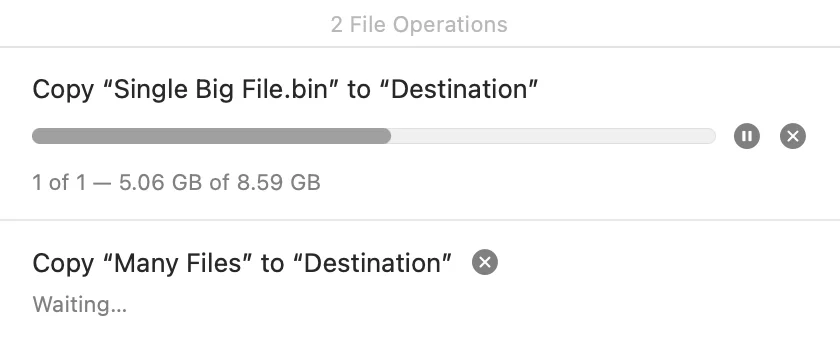
Pause it. Queue the next one.
See the speed and about how long is left, pause a long copy or move and resume it from the same point. With PRO, start more while one runs: drag them into the order you want, or hold them all with Pause All.
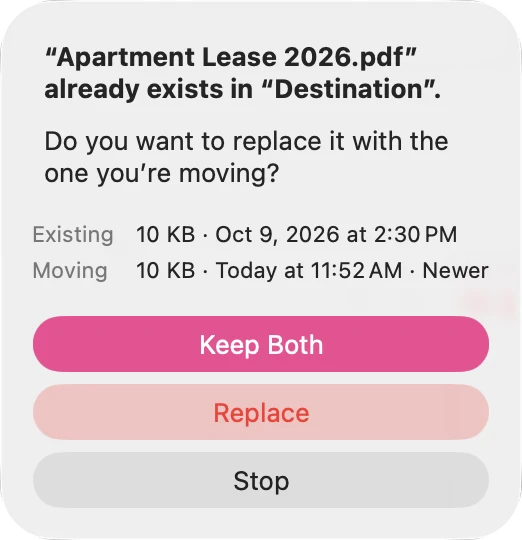
When a folder with the same name is already there, choose Merge… to see how many items are new, clash or are already there, before anything changes. Keep Both is the default.
⌘Z in any window undoes the last file operation, even after you quit and reopen FileOctopus (the last 20 steps, for 24 hours). It checks the files first and tells you if something changed.
Rename a favorite, make your own groups, hide a disk you never use, and right-click any row for Open in New Tab, Get Info or Eject. Only the sidebar changes; folders on disk keep their names.
Turn on Explorer keys in Settings ▸ General: Return opens and F2 renames, ⌘X cuts files. ⌃⌘] and ⌃⌘[ move between panes, and Settings ▸ Keyboard has an Explorer profile. Finder’s keys stay the default.
If something fails, you get the reason in plain words and what to try next. The Problems list shows each failed item, with Retry when trying again is safe.
Compared with Finder as it ships with macOS, and FileOctopus 1.0.4. Some Finder features are not in FileOctopus yet: see the current limits.
Why FileOctopus
Familiar on the surface. Careful underneath.
29×
faster search results than FinderMedian of 12 searches over 146,000 files on an Apple M3 Max with macOS 26.5.1: results in 0.27 s vs 7.7 s. Finder used its default ⌘F search, which also matches file contents; FileOctopus searched names.
8 MB
download · 22 MB installedRelease build measured on 16 October 2026; the notarized download may differ slightly.
Native
Swift + AppKit · Apple Silicon · macOS 15+
0
accounts. Your index stays on your Mac
Feels just like Finder
Same four views, same shortcuts, same menus. Your hands already know it.
Careful with every file
See changes before they run, keep both when names clash, and undo.
Private by default
No account, no cloud. Search covers only the folders you approve.
Try every PRO feature free for 14 days. No card, no account: the trial starts when you first open FileOctopus. Afterwards, keep Free or buy PRO once.
Free forever
FileOctopus Free
$0
No daily limits, and nothing to buy to keep using it.
Mac file browsing
Icon, List, Column and Gallery views
Quick Look, tabs and windows
Location Bar, Group By, Tags and Show in Finder
Quick Open, Command Palette and Go to Folder suggestions
Get Info with permissions, your own shortcuts and sidebar
Windows, tabs and panes reopen at launch
Back and Forward with mouse buttons and swipes
Up to 2 panes per window
Copy or move to the other pane, or drag
Safe file operations with Undo
Pause and resume copies and moves
Verified moves between drives
Merge folders with a preview, and Undo after quitting
Copy speed and time left, and a Problems list with Retry
Windows Explorer keys, if you want them
Compress to ZIP and current batch rename
Google Drive and Dropbox
Cloud status, and Download Now or Remove Download for one item
Search
Filename, path and fuzzy search, plus Spotlight results
Free download · Version 1.0.4
One-time purchase
FileOctopus PRO
Launch price
One license, up to 2 Macs · Lifetime updates
$29.99
Pay once. Launch offers from $14.99.
Launch pricing: $14.99 for the first 100 customers until Nov 2, $19.99 for the next 200 until Nov 30, then the price goes up.
$14.99First 100 · until Nov 2
$19.99Next 200 · until Nov 30
$29.99After that
Be one of the first to buy PRO at the launch price.
Everything in Free
Up to 16 panes per window
The 2×2 grid and larger layouts
Named saved workspaces
Saved searches
Saved searches pinned in the sidebar
Content search, including text in images (OCR)
File Shelf
Copy and move queue
Start more copies and moves while one runs; they wait their turn in one list, in the order you choose
Google Drive links
Copy Google Drive Link
One user, up to 2 Macs · Lifetime updates, no subscription · 30-day money-back. Launch prices end when sold out or on their end date. Taxes at checkout. Refund policy · Terms
Secure checkout by Lemon Squeezy · license key by email
Good to know
Before you switch.
Is FileOctopus a Finder alternative?
Yes. It is a separate file manager you can use instead of Finder for everyday file work. It does not replace the Desktop, the Dock, or the Open and Save dialogs, and Finder keeps running alongside it.
Can I download FileOctopus today?
Yes. FileOctopus 1.0.4 is signed and notarized by Apple. PRO is free for 14 days; then buy it once in the pricing section and paste the license key from your receipt email into FileOctopus → License…. Check the current feature status before you rely on it.
What happens after the trial?
FileOctopus continues as Free, with up to two panes per window and the included file-management and search tools. Your files, named workspaces and saved searches are not deleted, and you can still see what you saved. Applying saved workspaces, running saved searches, queueing a copy or move behind one that is running and using layouts with more than two panes need PRO; recovery information stays accessible.
Is PRO a subscription?
No. PRO is a one-time purchase with lifetime updates: every future version is included at no extra cost.
Does natural-language search use AI or send my files away?
Supported phrases are interpreted locally into visible, editable filters. It is rule-based search, not semantic AI. Core browsing and search do not require a cloud account.
What can’t it do yet?
There are no linked panes or duplicate finder, and the Shelf lasts for one window. Quick Actions such as Rotate and Create PDF are not available yet, and a paused copy has to be resumed or stopped before you quit. The current limits page lists the rest.
Ideas and roadmap
Shape what’s next.
Vote for what we build next. The most-wanted ideas move up the list, and you can suggest your own.



 FileOctopus